Keyboard shortcuts
Only the moderation keys can be changed. You change them under Settings › Moderation › Moderation keys, once for everywhere; they cannot differ per tab or split. Every other shortcut on this page is fixed.
| Shortcuts | Can you change them? | Where |
|---|---|---|
| The moderation keys: D, P, T, B, U, C, R, and a key for Warn if you add one | Yes | Settings › Moderation › Moderation keys |
| Everything else on this page | No | — |
Anywhere in the window
Section titled “Anywhere in the window”| Keys | What it does | Notes |
|---|---|---|
| Ctrl+T | Opens the box under the + in the tab row, for a chat in a new tab. | Enter opens the chat you typed; Esc closes the box. |
| Ctrl+Shift+T | Opens the same box for a chat beside the split you are working in, in its tab. | Enter adds it right after that split; Esc closes the box. |
| Ctrl+W | Closes the tab in front. | Not while you are typing in a text box. |
| Ctrl+F | Opens Search. | Not from inside the message box. |
| Ctrl+L | Puts the cursor in a message box. | The box of the split a key would act on (see Which chat a key goes to). Closes a panel that covers it. |
| Ctrl+Z | Undoes the moderation action on the action strip. | Only when you are not typing, or when that split’s message box is empty. Otherwise it undoes your typing. |
| Esc | Closes whatever opened last. | See Esc. |
Esc closes the thing that opened last, wherever your cursor is: the emote picker, a split’s channel editor, the reason menu, a panel such as Settings or Search, a card shown inside the main window, the card’s timeout lengths, a tab’s menu, or the Open a chat box.
With nothing open, Esc leaves pick mode. Only after that does it close the platform’s own chat panel, and never while you are typing in a text box.
Where a text box uses Esc for itself, it takes the press first. In the message box, Esc closes the suggestions. While you edit a nickname or a note on a card, Esc cancels the edit.
A card in a window of its own does not close with Esc. Use its close button.
| Keys | What it does | Notes |
|---|---|---|
| Ctrl+T | Opens a chat in a new tab. | As above. |
| Ctrl+Shift+T | Adds a chat beside this split. | As above. |
| Ctrl+W | Closes the tab in front. | |
| Delete | Closes the focused tab. | Reach a tab with the Tab key first. |
| F2 | Renames the focused tab. | Enter keeps the name, Esc cancels. An empty name shows the tab’s channels again. |
| Shift+F10 or the Menu key | Opens the focused tab’s menu. | The same menu as a right-click. |
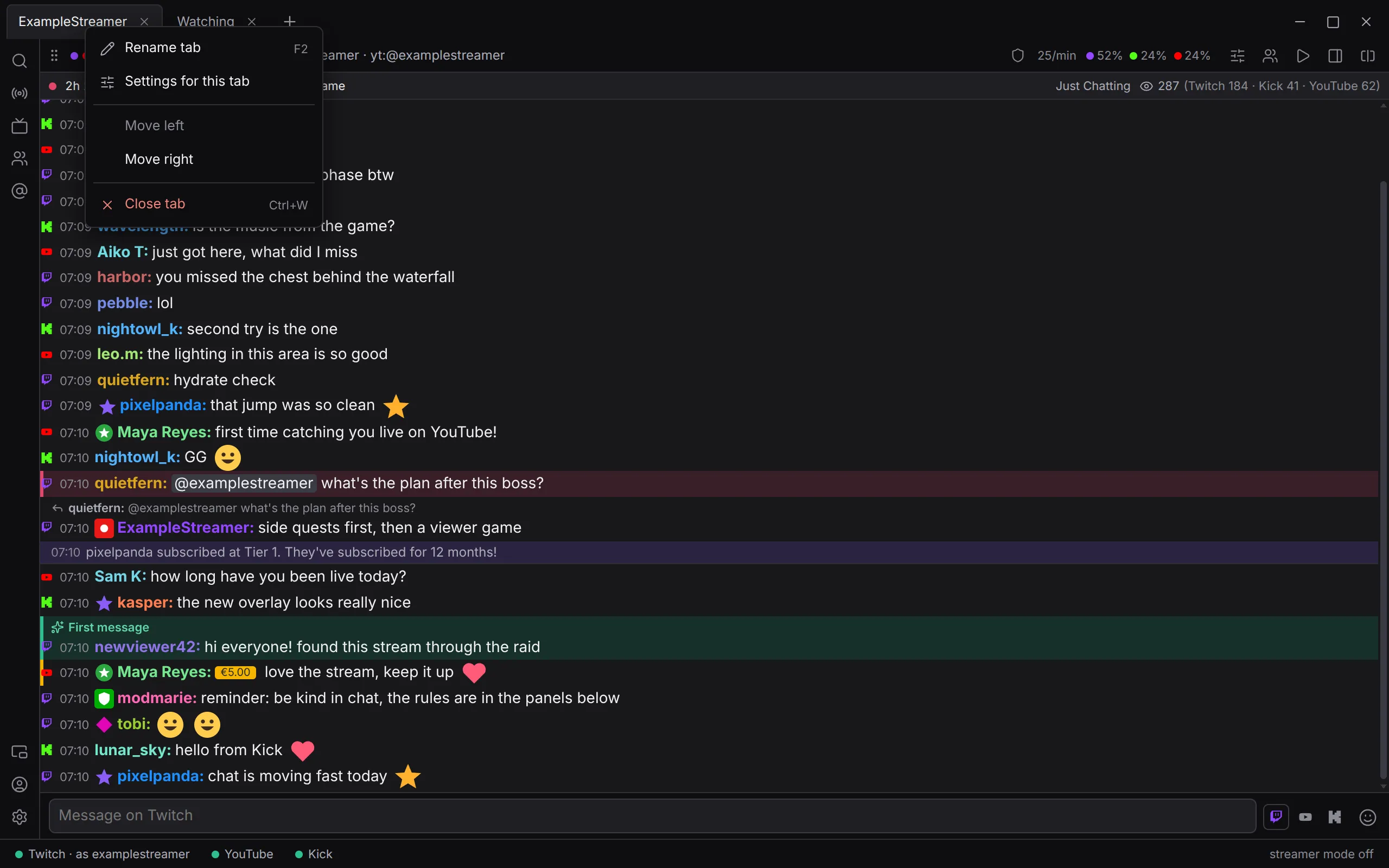
The tab’s menu offers Rename tab (marked F2), Settings for this tab, Move left, Move right and Close tab (marked Ctrl+W). A middle-click on a tab also closes it.
Splits
Section titled “Splits”| Keys | What it does | Notes |
|---|---|---|
| ← and → on a split’s grip | Moves the split along. | The grip is the handle at the left end of the split’s header. |
| Arrow keys on a divider | Shares the space between the two splits either side, a twentieth at a time. | Reach the divider with the Tab key. Double-click it for equal widths. |
| Enter in the channel editor | Saves the split’s channels. | Click the split’s name to open the editor. |
| Esc in the channel editor | Leaves without changing anything. |
Chat and moderation keys
Section titled “Chat and moderation keys”Point at a line in the chat, or pick one in pick mode, and press a key. These are the defaults. C and R work for everyone, in any chat; the rest only where your role gives you that tool.
| Key | What it does | Who it works for |
|---|---|---|
| D | Deletes the message. | Where your role allows it. |
| P | Purges the person: a one-second timeout, which clears their recent messages. | Where your role allows it. |
| T | Times them out for 10 minutes. | Where your role allows it. |
| B | Bans them. There is no confirmation. | Where your role allows it. |
| U | Unbans them. If the strip holds your own timeout or ban of them, U undoes that. | Where your role allows it. |
| C | Opens their card. | Everyone. |
| R | Replies to the line. | Everyone. |
| Shift + T, P or B | Opens the reason menu first. | Needs at least one preset reason. |
Warn has no key until you give it one. A warn key always opens the reason menu, because a warning needs a reason.
While the reason menu is open, it takes the keyboard: 1 to 9 pick a reason, Esc leaves, and nothing else gets through.
The keys never fire while you are typing in a text box, or while a panel covers the chat. Where a line shows no tool for an action, its key does nothing. See Moderating with Konflux.
Changing the moderation keys
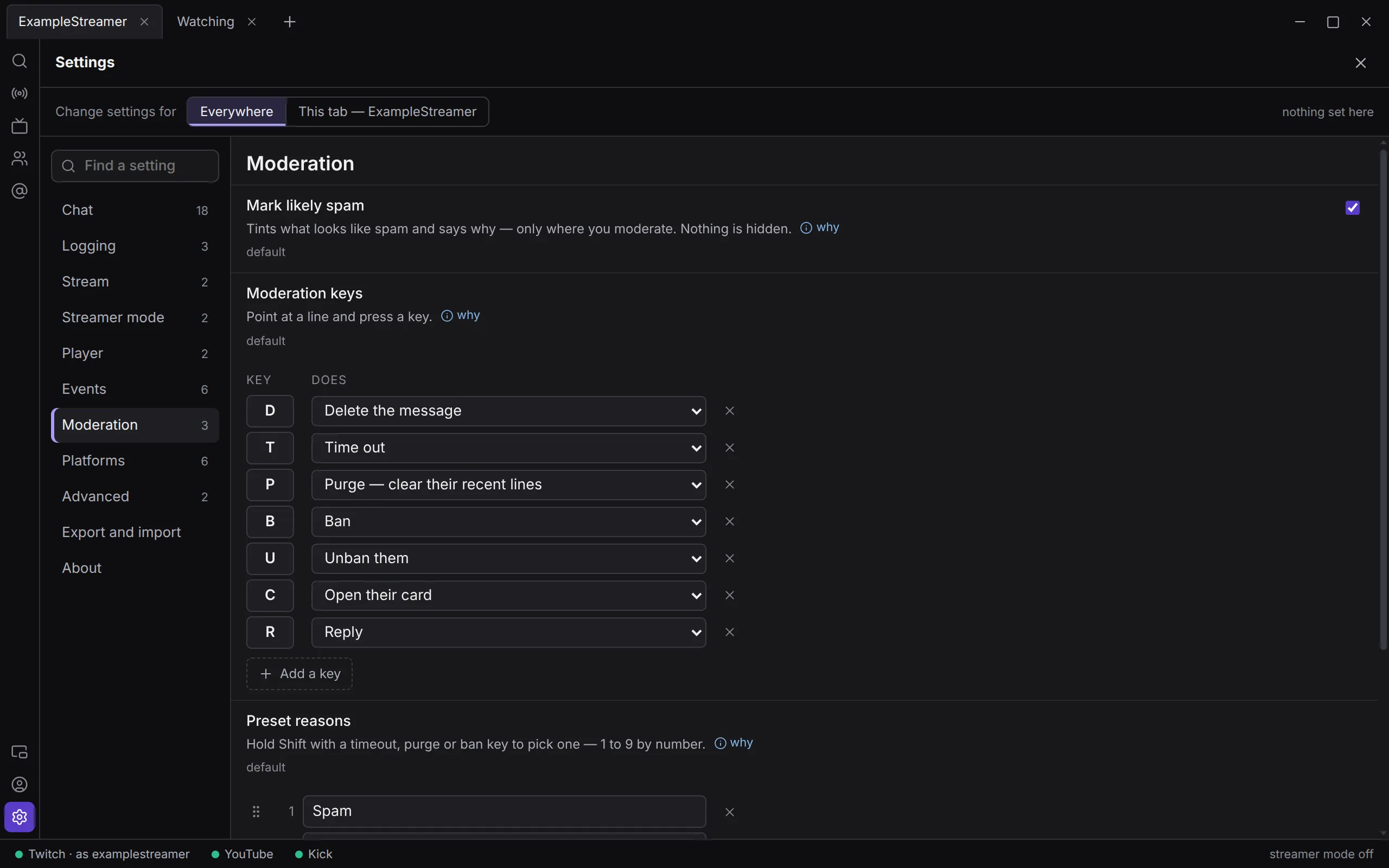
Section titled “Changing the moderation keys”Open Settings from the rail, choose Moderation, and find Moderation keys. Each row is a key (Key) and what it does (Does).
- To change a key, type a new character in its box.
- To change what it does, choose from the list: Delete the message, Time out, Purge — clear their recent lines, Ban, Unban them, Warn — asks why, Open their card or Reply.
- Add a key adds a row. The cross at the end of a row removes it.
Some rules:
- A key is one character. Capitals count as the same key, because Shift is kept for the reason menu.
- If you give one key two actions, the later row wins, and the editor says so under it.
- J and K move the pick, so a J or K binding never fires. The editor warns you.
- A key you remove does nothing. If you remove the key for delete, purge, timeout or ban, the button stays on the hover strip; its tooltip then names no key.
The preset reasons are next to the keys, under Preset reasons. In a reason’s box, Alt+↑ and Alt+↓ move it up or down the list. The first nine are the ones 1 to 9 pick.
Pick mode
Section titled “Pick mode”Pick mode lets you choose a line with the keyboard. It works whenever you are not typing in a text box and no panel covers the chat. The chat is one stop for Tab: Tab to it, then pick. With the focus in the chat, the focus moves with the picked line, and Tab goes on to that line’s tools.
| Keys | What it does |
|---|---|
| ↓ or J | Picks the newest line, then moves down. |
| ↑ or K | Picks the newest line, then moves up. |
| Any moderation key | Acts on the picked line. |
| Esc | Leaves pick mode, and gives the focus back to the chat. |
These keys are fixed. While you pick, the chat holds still and a badge says picking · Esc to leave. Switching tabs leaves pick mode.
Which chat a key goes to
Section titled “Which chat a key goes to”A moderation key or a pick key goes to exactly one split in the tab you are looking at:
- the split with an open reason menu;
- else the split your cursor is in;
- else a split where a line is picked;
- else the split under the pointer;
- else the leftmost split.
Ctrl+Z and Ctrl+L follow the same order.
Message box
Section titled “Message box”| Keys | What it does | Notes |
|---|---|---|
| Enter | Sends the message, or runs the command. | While suggestions are open, Enter takes the highlighted one instead, unless it is the command you typed in full. |
| Shift+Enter | Starts a new line instead of sending. | |
| Tab | Takes the highlighted suggestion. | With no suggestions open, Tab after a word of two or more letters looks for emotes that match it. |
| ↑ and ↓ | Move through the suggestions. | Only while suggestions are open. |
| Esc | Closes the suggestions. | |
| Ctrl+Z | With the box empty, undoes the moderation action on the strip. | With text in the box, it undoes your typing. |
Suggestions open on their own as you type:
:and two letters suggest emotes.@suggests names from this chat./at the start suggests commands. See Commands.!at the start suggests the channel’s own bot commands, most used first.
To send a message that starts with a slash, begin it with two: //. More about the message box is on Writing messages.
Emote picker
Section titled “Emote picker”| Keys | What it does |
|---|---|
| Typing | Searches the emotes. |
| Enter | Picks the first match. |
| Esc | Closes the picker. |
| Keys | Where | What it does |
|---|---|---|
| Enter | Nickname box | Saves the nickname. |
| Esc | Nickname box | Cancels the edit. |
| Ctrl+Enter | Note box | Saves the note. |
| Esc | Note box | Cancels the edit. |
| Esc | Anywhere | Closes a card shown inside the main window. |
Search
Section titled “Search”| Keys | Where | What it does |
|---|---|---|
| Enter | Either search box | Runs the search. |