People, notes and rules
Konflux remembers the people in your chats on your own computer: what they said, your notes about them, the names you give them, and which of their accounts belong together. None of it is shared with anyone.
The user card
Section titled “The user card”Opening a card
Section titled “Opening a card”- Click a name in the chat.
- Click an @mention in a message.
- Point at a line and press C. You can change the key under Settings › Moderation › Moderation keys. It works for everyone, not only moderators.
- Type
/user someviewerin the message box. - Click a name in Search results.
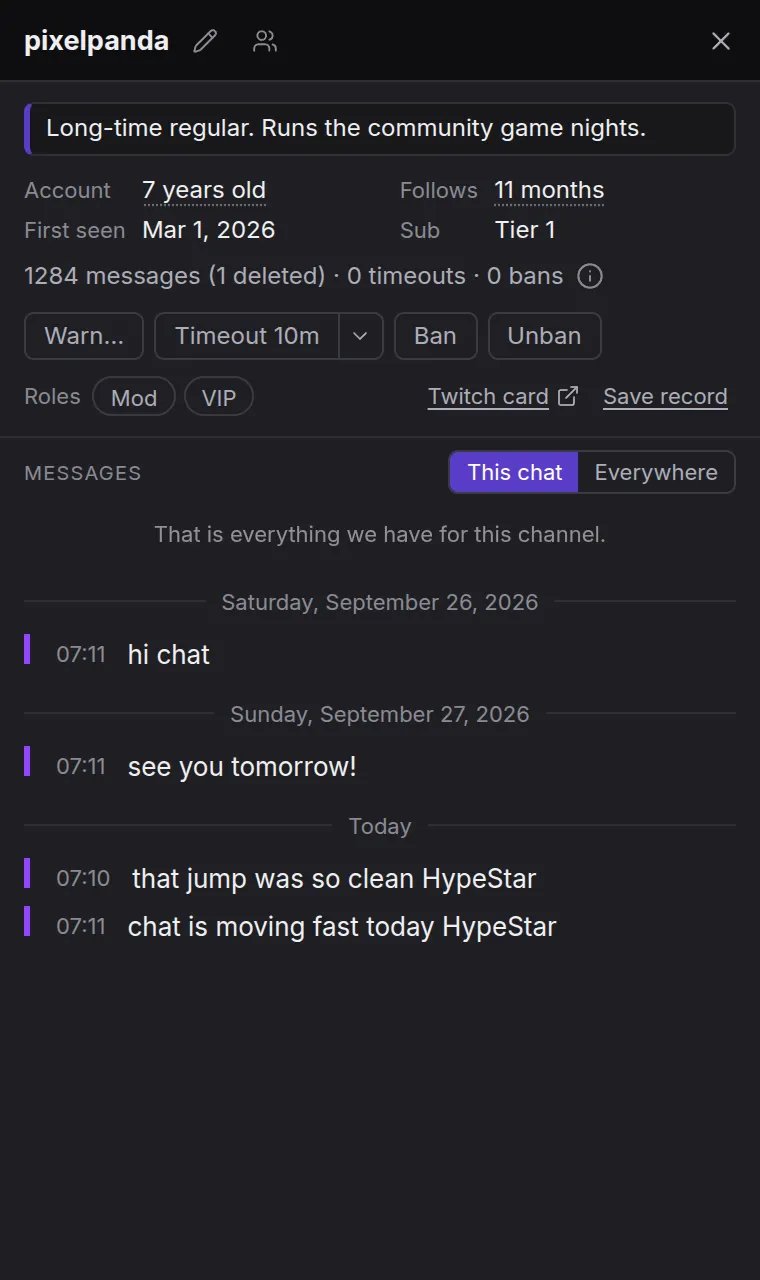
By default the card opens in a window of its own, which you can put beside Konflux or on another screen. The next person you open replaces the one shown. To show cards inside the main window instead, turn off Settings › Chat › Open a person in their own window (on by default). Inside the main window, the card sits on the right, beside the chat, which narrows to make room; in a narrow window it covers the chat instead. It takes the keyboard’s focus as it opens and gives it back as it closes. Open in its own window moves it out, and Escape closes it.
What the card shows
Section titled “What the card shows”At the top: their name as they spell it (hover it to see their login where it differs), your nickname for them in quotes, and the badges they wore in their last message here. If you have linked their accounts, it says “linked as” and the person’s name.
| Row | What it says |
|---|---|
| Account | How old the account is, such as “3 years old”. Hover for the date it was made. A new account, under two weeks old, is marked. Only Twitch publishes this: YouTube and Kick accounts say “not published”. A Twitch account says “unknown” when Twitch could not be asked, for example without a Twitch sign-in |
| Follows | How long they have followed this channel, or “no”. Twitch tells only the broadcaster and moderators, so elsewhere it gives a short reason, such as “only mods can see”. The ⓘ beside it gives the whole reason |
| First seen | The day Konflux first saw them in this chat |
| Sub | Their subscription, in the platform’s words, from the badge on their last message. As the broadcaster you also see a gifted subscription and who gave it. Otherwise “no”, or a short reason |
Under the rows, a line counts their messages (and how many were deleted), timeouts and bans. Where there are any, a fold lists the actions against them: when, and what, with the words of a deleted message where Konflux has them. These numbers come from your own log, so they cover only what Konflux has seen, not the platform’s full record.
Your note about them comes next; see Notes.
Message history
Section titled “Message history”Under Messages, the card lists what they said, oldest at the top and newest at the bottom. It opens at the newest.
- This chat shows this chat only. Everywhere shows every chat on the same platform where Konflux has seen this account.
- Every line shows its time. A date line separates the days: “Today”, or the full date with the day of the week.
- Deleted messages stay, struck through.
- Scroll up for older messages. At the end the card says “That is everything we have for this channel.”
- The clock button on a line opens the chat around that message in a window of its own, In context.
The history comes from your own log, so it works on every platform.
Buttons on the card
Section titled “Buttons on the card”| Button | What it does |
|---|---|
| Pencil (Nickname or colour) | Your nickname and name colour for them; see Nicknames and colours |
| People (Link to a person) | Link this account to their accounts elsewhere; see Linking accounts |
| Save record | Writes what they said, and what was done about it, to a file for a report or an appeal. Anyone can use it; see A record of what someone said |
| Twitch card | Twitch’s own viewer card, where you moderate on Twitch; see below |
Where you moderate, the card also has moderation buttons (Warn…, Timeout 10m, Ban, Unban), and as the broadcaster the Mod and VIP switches. For those, see Moderating with Konflux.
Their card: Twitch’s own viewer card
Section titled “Their card: Twitch’s own viewer card”On a Twitch card, where you are a moderator or the broadcaster, Twitch card opens Twitch’s own viewer card in a window. It holds two things Twitch does not give apps any other way: the moderator comments your team wrote about the person, and Twitch’s own record of what they said in the channel. Kick and YouTube have no such card, so the button is not there.
It needs its own Twitch sign-in, once. The first time, the window explains why and offers Sign in to Twitch and Not now. Sign in to Twitch opens Twitch’s login page in the same window; when you are through it, Back to their card returns you to the card.
Why a second sign-in: the Twitch sign-in in Accounts gives Konflux a permission to use Twitch’s app interface. Twitch’s website uses a separate login of its own, and there is no way to turn one into the other. Konflux does not borrow your browser’s Twitch session either. So the card window signs in to Twitch’s website itself, like a browser would.
That sign-in is kept for Konflux’s windows onto the platforms’ own pages, so it also covers the platform’s own chat panel, and it lasts across restarts.
Nicknames and colours
Section titled “Nicknames and colours”You can give anyone a name and a colour that only you see.
- On their card, click the pencil (Nickname or colour).
- Type the name in the field (“Your name for them — only you see it”).
- To pick a colour, tick colour and choose one.
- Click Save. Remove takes the nickname and colour away again. Cancel leaves things as they were.
- In chat, a nickname is underlined with dots, so it cannot pass for their real name. Hover it to see their login.
- A colour you chose says so when you hover the name.
- Nothing is sent anywhere. Other people see their usual names.
- Konflux can only attach a nickname once it knows their account ID, so someone who has never chatted where Konflux could see shows “No nickname or note until they have chatted here.”
- To give someone the same look on all their linked accounts at once, use Name and look in the People panel; see Linking accounts.
- In streamer mode, nicknames and colours are hidden and everyone shows by their own name.
A note is what you want to remember about someone.
- On their card, click Add a note….
- Type it (“What should you remember about them?”).
- Click Save, or press Ctrl+Enter.
Click the note to change it. Save it empty to remove it.
- A note is private to this computer, and belongs to that one account.
- In streamer mode, notes are hidden.
- Settings › Export and import can include Notes about people. That box is unticked by default, because notes are about other people.
Linking accounts across platforms
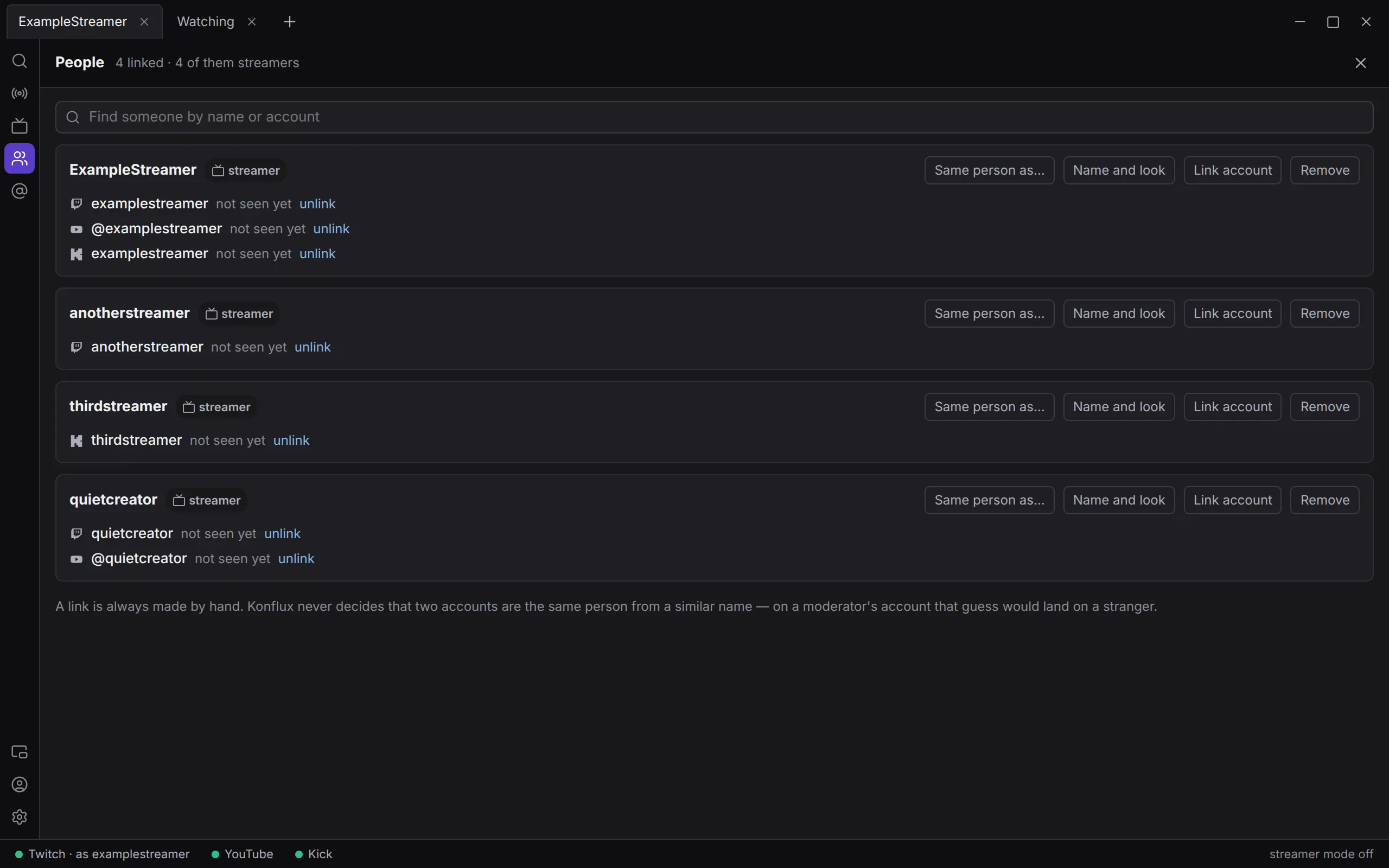
Section titled “Linking accounts across platforms”You can tell Konflux that several accounts belong to one person, for example their Twitch and their YouTube. Konflux only links accounts when you do it yourself. It never guesses from similar names, because a guess on a moderator’s screen can land on a stranger.
From a card:
- Click the people button beside their name (Link to a person).
- Type their account elsewhere:
twitch.tv/name,yt:@handleorkick:name. - Or, under “or put them with”, find someone you have already linked by name and pick them. Leave it empty to make a new person.
- Click Link.
If the account is already linked, the box says “Linked as” and who, and offers Unlink with their name.
In the People panel. Click People on the rail to see everyone you have linked. Find someone by name or account in the search field. Each person shows their accounts, with:
- Link account, to add another account;
- unlink beside an account;
- Name and look: the person’s name, In chat, show as (a nickname for all their accounts) and colour, then Save;
- Make streamer, to add them to Streamers and the Live page;
- Remove, to take them out of the list.
An account marked “not seen yet” is kept by name until Konflux sees it in a chat. A nickname or colour reaches it once you save the look again after that.
What a link does:
- Their card says “linked as” and the person’s name.
- On a platform without name colours, such as YouTube, they wear the colour they chose elsewhere.
- Where you moderate, their card offers the same action on their linked accounts, one platform at a time. See Acting on the same person elsewhere.
Ignoring and blocking
Section titled “Ignoring and blocking”Ignore someone with a rule: put their login in From and tick hide; see Highlight and ignore rules. Their messages are then not drawn in your chat. Nothing is deleted anywhere, and nobody else is affected.
Block someone on Twitch with /block someviewer in a Twitch chat, and /unblock someviewer to undo it. This changes your own Twitch account’s block list, everywhere on Twitch, not only the channel. It needs a Twitch sign-in. Kick and YouTube cannot be asked to block from Konflux.
Search
Section titled “Search”Search looks through every message Konflux has recorded on this computer.
- Click Search on the rail, or press Ctrl+F anywhere except in a message box.
- Type words from the message (“Words from the message…”), a name (“From anyone — or a name”), or both.
- A message must contain all the words, in any order. Words are matched whole, so part of a word finds nothing.
- A name with no words finds everything that person said.
- Results are newest first, 100 at a time. Scroll down for more.
- Here searches the tab you are looking at, which is where search starts. Everywhere searches all chats. One channel… picks a single chat.
- Each result shows the name, the badges they wore when they said it, the chat and the time. Click the name to open their card.
- Deleted messages are shown struck through.
Mentions
Section titled “Mentions”The Mentions panel collects messages that mention you, from every chat you have open, newest first. Open it with Mentions on the rail.
- A message mentions you when it contains one of your account names on that platform, with or without @. So it only works on platforms you are signed in to.
- The rule Mentions of me, which every Konflux starts with, is what sends them here. Anything another rule sends to Mentions arrives too; see Highlight and ignore rules.
- Only messages that arrive while Konflux is open, never history, and never your own.
- The rail button shows how many you have not seen. A tab you are not looking at shows its own count.
- Opening the panel counts them all as seen. So does looking at the tab they came from.
- Click one to go to the tab showing that chat. If no tab shows it any more, it cannot be clicked.
- A mention deleted afterwards is struck through.
- Clear empties the list. It keeps the newest 300, and starts empty each time Konflux starts.
Highlight and ignore rules
Section titled “Highlight and ignore rules”Rules colour, hide or collect lines that match what you describe. They live under Settings › Chat › Highlights and ignores, and apply to every chat. Open Settings from the rail with Everywhere chosen to see them; a tab’s or a split’s own settings do not list them.
Make a rule
Section titled “Make a rule”- Click + Add a rule. A new rule called “New rule” appears. Type a name for it.
- Fill in what it matches and tick what it does.
- Click Save rules. The button says Saved when there is nothing left to save.
The tick box at the start of a rule turns it off without deleting it. The ✕ deletes it (Delete this rule).
If you leave Settings before saving, your changes are kept until you come back, as long as Konflux stays open.
What a rule can match
Section titled “What a rule can match”Every part you fill in must match. A part left empty matches anything.
| Part | What it matches |
|---|---|
| Text | What the message says: contains (anywhere), as a whole word, or matches regex (a regular expression). Capitals do not matter |
| From | Logins, separated by commas |
| Wearing | Badge names, such as moderator, vip or subscriber. Any one of them is enough |
| On | Twitch, YouTube, Kick. None ticked means any platform |
| Only if | it mentions me, first message (Twitch marks these) or paid (bits, Super Chats) |
What a rule can do
Section titled “What a rule can do”| Action | What happens |
|---|---|
| colour | Tints the line in your colour: a solid edge and a faint wash |
| hide | The line is not drawn in your chat. Nothing is deleted anywhere |
| add to Mentions | Puts the message in the Mentions panel |
| notify | A desktop notification, at most one every 4 seconds. After a burst, the next one says how many more there were |
| sound | A short, soft sound, at most one every 1.2 seconds |
How rules work together
Section titled “How rules work together”- Konflux reads rules top to bottom. The first matching rule with a colour decides the colour. If any matching rule hides a line, it is hidden.
- Use the arrows to move a rule up or down (Earlier — its colour wins, Later).
- Rules never apply to your own messages.
- notify, sound and add to Mentions only act on messages arriving live, never on history. In streamer mode there are no notifications or sounds.
- A new or changed rule applies to lines drawn after you save it.
- Hover the platform mark of a coloured line to see which rules matched it.
A fresh Konflux starts with one rule, Mentions of me: it colours messages that mention you and adds them to Mentions. Notifications and sounds are off in it until you tick them.
When a rule is refused
Section titled “When a rule is refused”- A rule that says nothing about which lines it is for would match every line, so it is not saved. The editor says “Not saved —” and why.
- A regular expression that could freeze the chat on a long message is not used. The rule shows “Skipped by the chat:” and how to write it instead.
- There can be at most 200 rules.
Not yet
Section titled “Not yet”- Buttons on the card to highlight, ignore or mention someone. For now, write a rule, or type the @mention.
- Clicking a mention to jump to the message itself. Today it goes to the tab.
- Whispers and direct messages.