Moderating with Konflux
Konflux gives you moderation tools wherever your role allows them, on all three platforms at once. This page covers every tool, the keys that trigger them, and what each platform lets an app do.
The fastest path is to point at a line and press a key. Everything else on this page builds on that.
Who sees moderation tools
Section titled “Who sees moderation tools”Konflux works out your role in each channel, separately for each platform: viewer, VIP, moderator, lead moderator or broadcaster. It learns your role in three ways:
- Your own channel. You are the broadcaster there as soon as you open it.
- Twitch’s list. When Konflux starts, and whenever you sign in to Twitch, it asks Twitch which channels you moderate.
- Your own badges. When you send a message, the badges on it say what the platform thinks you are. On YouTube and Kick this is the only way Konflux can tell you are a moderator, so send a message in that chat first.
Tools appear only where your role gives them, and only on lines from people you outrank. A moderator gets no tools on another moderator’s line. The broadcaster gets them on everyone else’s. If you are only a viewer somewhere, you see just the reply arrow there.
In a split that merges several platforms, you can be a moderator on Twitch and a viewer on YouTube. The tools then differ line by line.
The platform has the final say. Konflux decides which tools to show you; the platform decides what actually happens. If it refuses, you see its refusal in its own words on the action strip.
A few things worth knowing:
- Konflux moderates as the account marked sends for that platform under Accounts on the rail.
- If an action fails for a missing permission, open Accounts. A login that is older than a feature says so: “This login predates 1 permission Konflux now asks for. Sign out and in again to grant it.”
- During a session Konflux only ever raises your role, never lowers it. If someone removes you as a moderator, your tools stay until you restart, and the platform refuses what you try.
Point and press: hover tools and keys
Section titled “Point and press: hover tools and keys”Point at a line. A small strip of buttons appears at its right end: a bin, an eraser, a timer and a ban sign, then the reply arrow. Pointing at each one, or reaching it with Tab, names it and its key: Delete message (D), Purge — clears their recent messages (P), Timeout (T), Ban (B) and Reply (R). Esc hides the name again. The strip sits over the line, so showing it never moves anything.
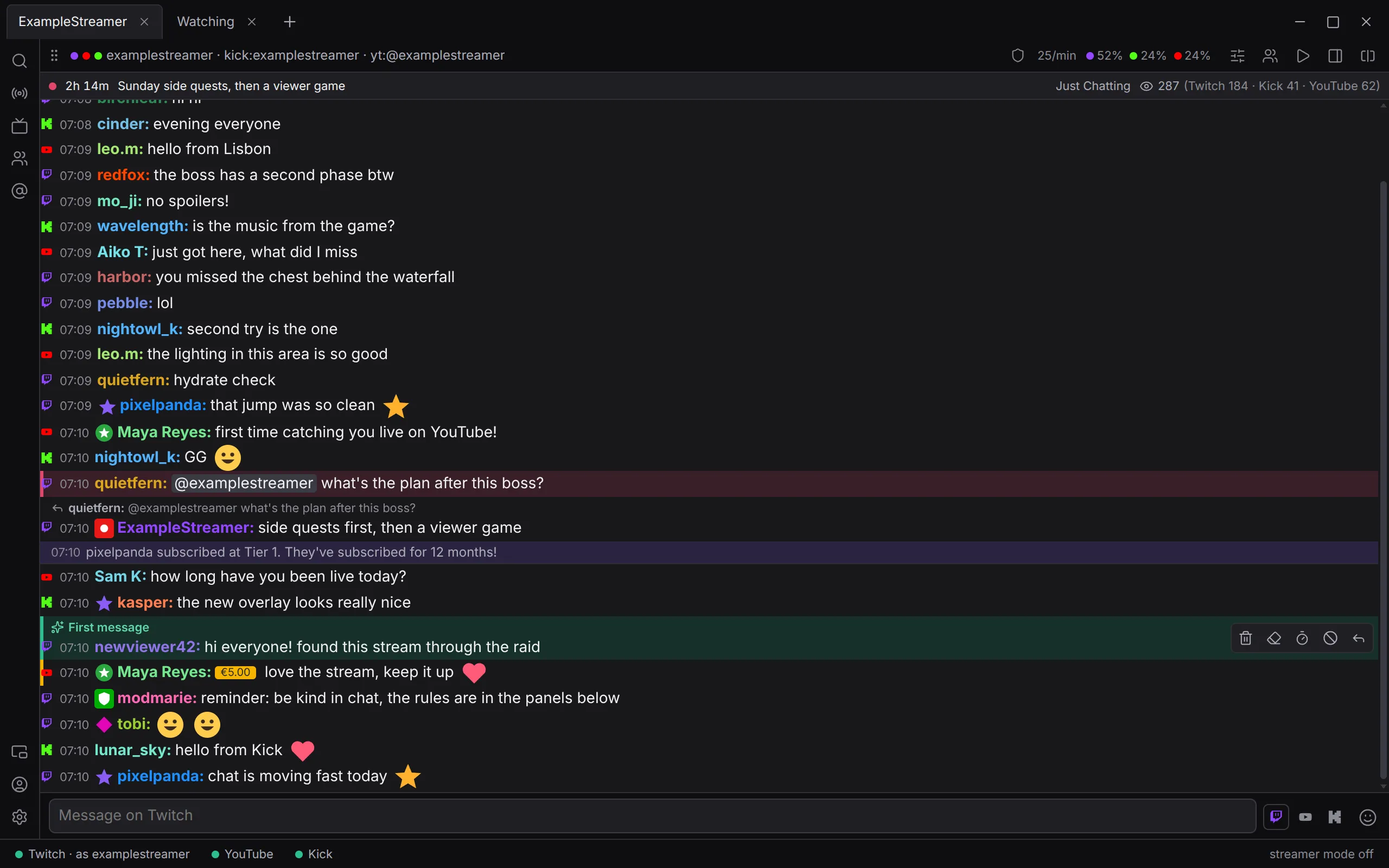
You can press a key instead of clicking. These are the defaults:
| Key | What it does |
|---|---|
| D | Deletes the message. |
| P | Purges the person: a one-second timeout, which clears their recent messages. |
| T | Times them out for 10 minutes. |
| B | Bans them. There is no confirmation. |
| U | Unbans the person on the line. If this split’s strip holds your own timeout or ban of them, U undoes that. |
| C | Opens their card. |
| R | Replies to the line. |
A key goes through the same check as its button. Where a line shows no tool, its key does nothing. R and C work on every line, for everyone.
Keys never fire while you are typing in a text box, or while a panel covers the chat. Hold Shift with T, P or B to pick a reason first (see Preset reasons).
T is always 10 minutes. For another length, use the card or /timeout.
You can change every key under Settings › Moderation › Moderation keys. See Keyboard shortcuts.
The chat holds still while you point at it
Section titled “The chat holds still while you point at it”While your pointer is over a chat that is following the newest messages, the chat stops scrolling. A new message cannot push the line you are aiming at out from under you. New messages still arrive below what you see, and a badge counts them: frozen · 3 new. Move the pointer off the chat to catch up, or scroll down to read them.
Deletions and bans still show at once on the lines you can see. Only the scrolling waits. (Once a chat holds twice as many lines as its Messages kept in view setting allows, new lines wait instead of landing below, and arrive when the chat lets go.)
If the pointer rests without moving, the chat lets go after a while and jumps to the newest message. Moving the pointer again holds it again. If you have scrolled up, a Jump to newest button takes you back down.
Two settings control this, both under Settings › Chat, and both can differ per tab or split:
- Pause while the pointer is over the chat: on by default.
- Let go when the pointer rests for: 10 seconds by default. 0 holds the chat for as long as the pointer is there.
Pick mode: moderating without the mouse
Section titled “Pick mode: moderating without the mouse”Pick mode lets you choose a line with the keyboard and act on it with the same keys.
- Make sure you are not typing in a text box. The chat is one stop for Tab: you can Tab to it, and it shows an outline.
- Press ↓ or ↑ (or J or K). The newest line is picked and outlined, and its tools show. If the chat had the focus, the focus moves with the picked line, and Tab goes on to its tools.
- Move with ↓ and ↑, or J and K.
- Press an action key, such as T or B. It acts on the picked line.
- Press Esc to leave pick mode. The focus goes back to the chat.
While you pick, the chat holds still and a badge says picking · Esc to leave.
A few rules:
- The keys go to one chat only: the split your focus is in, else the one already picking, else the one under the pointer, else the leftmost split of the tab you are looking at.
- Only lines you can see can be picked. Connection and event lines are skipped.
- Switching to another tab leaves pick mode.
The action strip and undo
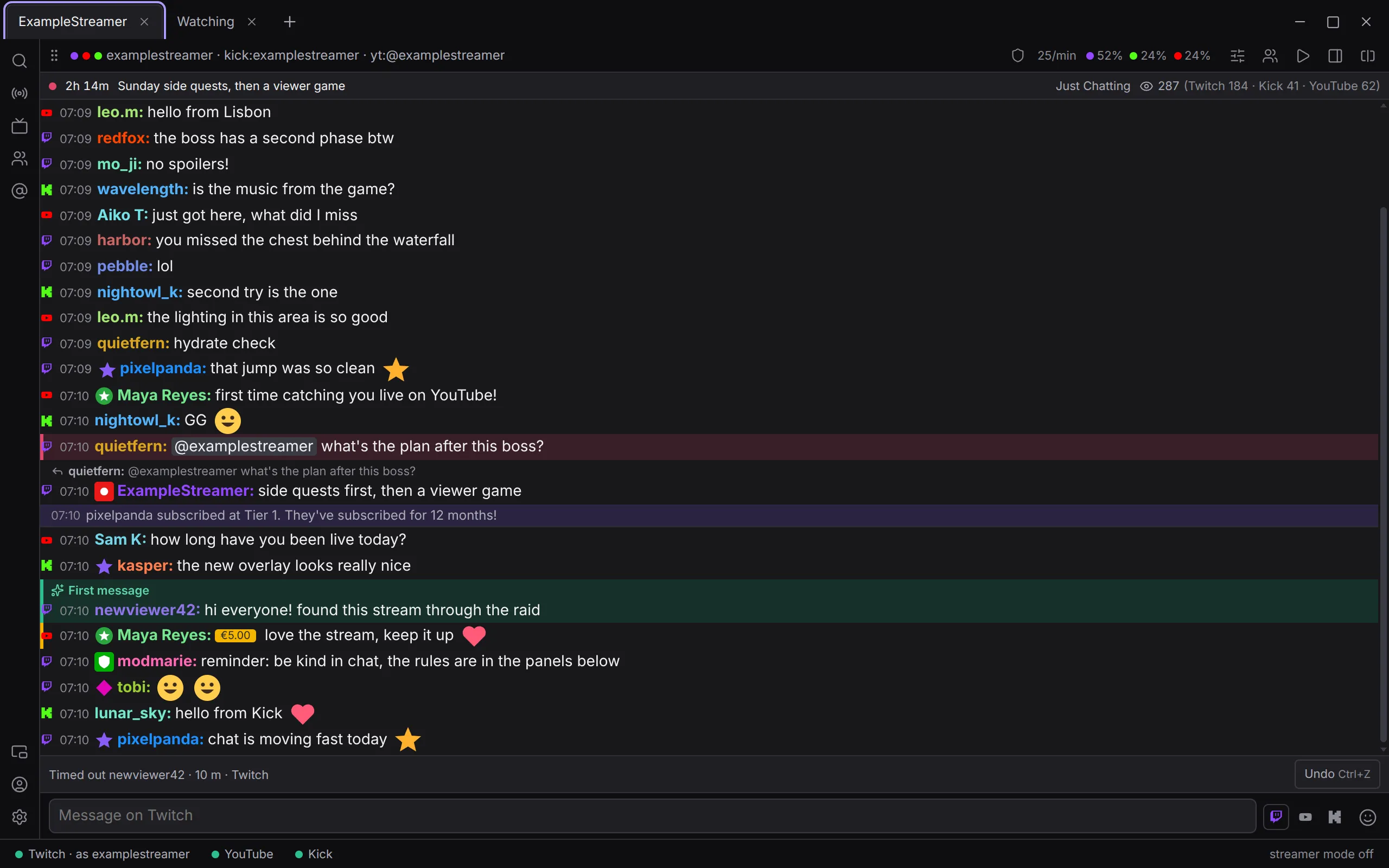
Section titled “The action strip and undo”After you act, a strip appears above the message box. It shows what you did, where, and what the platform said. For example: “Timed out someviewer · 10 m · Twitch · Spam”, then Twitch’s answer, “timed out for 600 s”.
- While Konflux waits for an answer, the strip says sending….
- Once the platform answers, a screen reader reads out what the strip says.
- If the platform refuses, the strip says so, for example “Could not ban someviewer · Twitch”, with the platform’s reason in red.
- Undo (marked Ctrl+Z) reverts exactly the action the strip shows. Nothing else.
- Ctrl+Z works when your focus is not in a text box, or when this split’s message box is empty. With text in the box, Ctrl+Z undoes your typing as usual.
/undodoes the same as the Undo button.- Once you have done more than one thing, a clock button appears at the end of the strip (its tooltip says Recent actions). It lists every action in this split’s channels, newest first, each with its own Undo.
The list lasts until you close Konflux. Actions you take from a card appear on the strip too.
What undo can and cannot revert
Section titled “What undo can and cannot revert”Undo can lift a timeout or a ban.
Undo cannot bring back:
- A deleted message. No platform can restore one, so the strip says “deleted — can’t be undone” and offers no Undo.
- A purge. Its one-second timeout is over before Undo could reach it, and the cleared messages stay gone, so the strip says “purged — can’t be undone” and offers no Undo.
- A warning. The strip says “can’t be undone”.
- A role change. Give or take the role again instead.
- Room modes, announcements, Shield Mode and clearing the chat. These answer above the message box rather than on the strip. Turn a mode or Shield Mode off again; a cleared chat cannot be restored.
On YouTube, Konflux can lift a timeout or ban only if it made it itself, during this session. If YouTube gave nothing to lift it by, the strip says “YouTube gave no handle for this one”.
If Konflux’s core restarts before the platform answers, the action says “the core restarted before the platform answered — it may have been done”.
Preset reasons
Section titled “Preset reasons”Hold Shift and press T, P or B while pointing at a line. A menu opens over the chat, asking for example “Timeout someviewer — why?”. Press 1 to 9 to pick a reason, or click one. Press Esc to leave it.
- The menu keeps the line it was opened on, and the chat holds still while it is open.
- The reason is sent with the action and shown on the strip.
- YouTube’s moderation takes no reason, so none is sent there. Kick takes at most 100 characters.
- Delete has no reason menu: Twitch’s delete takes no reason.
- With no preset reasons, Shift plus a key simply acts, without a reason.
The default reasons are Spam, Ban evasion, Harassment, Hate speech, Self-promotion and Off-topic. Change them under Settings › Moderation › Preset reasons: one reason per row, dragged to reorder, or moved with Alt+↑ and Alt+↓ in its box. The first nine are numbered. Add a reason adds a row.
Warn, time out, ban: the card
Section titled “Warn, time out, ban: the card”Click a name, or press C on a line, to open the person’s card. The rest of the card is described on People, notes and rules. Where your role gives you tools, the card has a row of moderation buttons, in order of weight:
- Warn… (Twitch only). Type why, or click one of your preset reasons, then press Warn someviewer. Twitch shows them the reason and holds their next message until they acknowledge it.
- Timeout 10m. The arrow beside it (Another length) offers 1 minute, 10 minutes, 1 hour, 1 day and 1 week.
- Ban.
- Unban. This lifts a ban or timeout, even one made earlier or by another moderator. On YouTube it appears only for a ban or timeout Konflux made during this session.
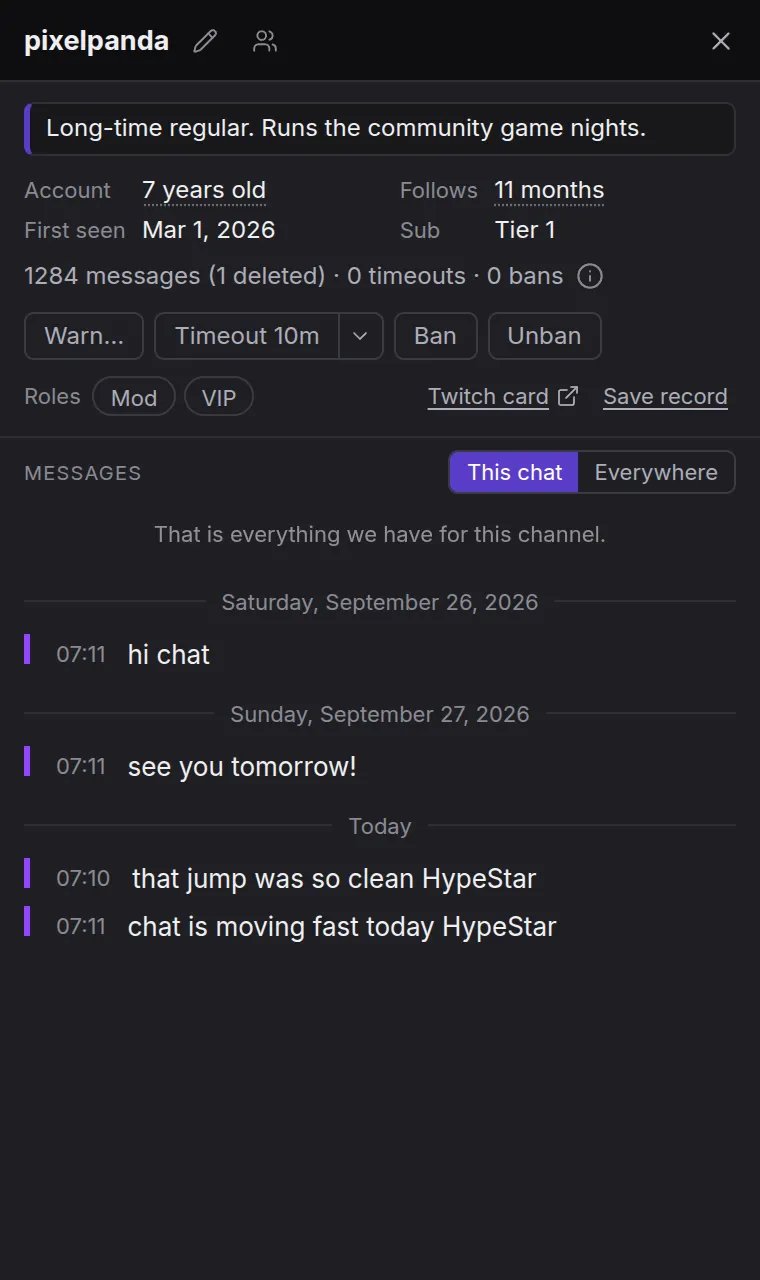
The platform’s answer shows on the card and on the action strip.
The card also counts what has happened to them, for example “12 messages (2 deleted) · 1 timeout · 0 bans”. Below that, a folded list (3 actions against them) gives the date and time of each. These come from Konflux’s own log, so they cover only what Konflux saw happen, and they do not say who acted or why.
You can also warn from the keyboard: bind a key to Warn — asks why under Moderation keys. It always opens the reason menu. Or type /warn someviewer reason.
Acting on the same person elsewhere
Section titled “Acting on the same person elsewhere”If someone chats on several platforms, you can link their accounts by hand. On their card, press the link button (its tooltip says “Link to their accounts elsewhere — only you see it”), enter their other account, and press Link. Linking is described in full on People, notes and rules.
Once they are linked, their card shows Elsewhere. It lists each linked account in each open channel where you hold a role, for example “someviewer on Kick, in examplestreamer”, with its own Timeout 10m, Ban and Unban buttons.
- Nothing is carried across on its own. Each button acts on that one account, and you press it each time.
- Each platform answers for itself, under its own line. A ban that works on Twitch and fails on Kick shows both answers.
- Konflux follows only links you made yourself. It never guesses that two accounts belong together from similar names.
- Only channels you have open in a tab are listed.
- Konflux finds the account in that channel’s own history. If they have never spoken there while Konflux was listening, the platform is not asked, and you see why: “someviewer has not spoken in examplestreamer while Konflux was listening, so there is no account to act on”.
AutoMod’s held messages (Twitch)
Section titled “AutoMod’s held messages (Twitch)”When Twitch’s AutoMod holds a message in a channel you moderate, nobody else has seen it yet. Konflux shows it to you in two places.
In the chat. The held message appears in its own chat, marked Held by AutoMod with Twitch’s reason, such as “Held by AutoMod · blocked term”. The words AutoMod objected to are marked. Two buttons sit on the line: a tick (Let it through) and a cross (Reject it). The line settles when Twitch confirms the decision, for example “approved by somemod”. That also shows when another moderator decided first, or when the hold expired.
On the rail. Once something has been held, an hourglass appears on the rail. While messages wait, it carries a count, and its tooltip says for example “2 held for review”. It opens Held for review: every held message from every Twitch channel Konflux knows you moderate, oldest first, even from channels you have no split open for. Each shows the channel, the reason, how long it has waited, the whole message, and Let through and Reject. Decided messages move under Decided, which Clear empties. If Twitch refuses a decision, the message says “Twitch refused:” and why. Click a name to open their card with their messages from everywhere.
It only knows what arrived while Konflux was open. Twitch offers no way to ask for a backlog, so the panel starts empty every time. It says so: “Nothing has been held since the app opened.”
In streamer mode, held messages show as “held for review — hidden in streamer mode”.
Suspicious users (Twitch)
Section titled “Suspicious users (Twitch)”When Twitch flags someone as suspicious in a channel you moderate, Konflux marks their lines with Twitch’s word for it: Monitored, Restricted or Likely ban evader. Hover the mark to read Twitch’s reasons, such as ban evasion or bans in other channels. It ends “Twitch’s assessment, not Konflux’s”.
- Every line they have already sent in that channel gets the mark, not only the newest.
- Twitch hides a restricted person’s messages from everyone but moderators. Konflux draws that message itself so you can act on it.
- To answer in Twitch’s own record, type
/monitor,/restrict,/unmonitoror/unrestrictwith their name. - Streamer mode hides these marks.
Spam marks
Section titled “Spam marks”Where you moderate, Konflux tints messages that look like spam and says why on a small line above them. The signs are: one person repeating the same message (for example “Repeated 3× in 12 s”), All caps, Stacked characters, Disguised letters, Character art and Link in first message. Nothing is hidden or moved; the mark is a hint.
The setting is Mark likely spam under Settings › Moderation. It is on by default and can differ per tab or split.
Shield Mode (lockdown)
Section titled “Shield Mode (lockdown)”Shield Mode is Twitch’s panic button. Each Twitch channel in a split where you moderate gets a shield button in the split’s header.
- Click it to turn on the channel’s Shield Mode. It turns orange while on, and its tooltip says who turned it on.
- Click it again to lift Shield Mode.
- What Shield Mode does is the preset you set up on Twitch. In the button’s words: “What the preset contains is set on Twitch, and it is the only way to require phone verification.”
- While it is on, this view stops showing timeout and ban notices, so your own actions do not flood the chat.
- When the split opens, Konflux asks Twitch whether Shield Mode is already on, so the button starts out showing the truth.
- If Twitch cannot be reached, the button turns red and its tooltip says why.
- You can also type
/shieldand/shieldoff.
YouTube and Kick have no equivalent.
A record of what someone said
Section titled “A record of what someone said”Save record on a card writes what the person said, and what was done about it, to a file. Use it for a report to the platform or to answer an appeal.
- It covers the chat the card shows: This chat or Everywhere, the switch above the card’s messages.
- The file is plain text in Markdown, so it pastes into a report form and still reads as tables where Markdown is shown.
- It holds the account (name, ID, and its age where the platform publishes one), when they were first seen, how many messages were removed, your note about them, every moderator action Konflux saw, and every message, oldest first. Removed messages are included, struck through and marked.
- It says what it is: a copy of what this Konflux log received, not a statement from the platform. It keeps apart what this computer heard itself from what it fetched from your log server.
- It stops at 10,000 messages and says so inside. Narrow the card to one chat for a complete record.
- The card tells you where the file went, for example “Saved 8 messages and 3 actions to …”. On Linux the files are in the
evidencefolder inside~/.config/konflux.
Anyone can save a record, not only moderators. People reporting what happened to them usually need it most.
A record needs Konflux’s message log, which is on by default: Settings › Logging › Keep a local message log.
The mod log
Section titled “The mod log”Konflux keeps three views of what has happened:
- Your own actions are on the action strip and under Recent actions, for this session.
- Everyone’s timeouts and bans appear in the chat as lines, such as “someviewer timed out for 10 min” or “someviewer banned”. The setting is Show timeouts and bans as they happen under Settings › Chat: Only where you moderate (the default), Always or Never. A removed message is struck through either way.
- One person’s history is on their card: the counts and the list of actions against them.
Clearing many messages at once: /nuke
Section titled “Clearing many messages at once: /nuke”/nuke acts on every message on screen that contains some text, and it always shows you the count before anything happens.
Type /nuke, the text, how far back to look, and optionally what to do:
/nuke bit.ly 5mdeletes every matching message from the last 5 minutes./nuke bit.ly 5m banbans everyone who sent one./nuke bit.ly 5m timeout 1htimes them out for an hour. Without a length, a timeout is 10 minutes.
Konflux then shows a preview above the message box, for example “Delete 6 messages from 2 people matching bit.ly?”. It also says how many more matched from people you may not act on, who are left alone, and that deletions cannot be undone. Press Do it or Cancel.
- The text is one word, matched anywhere in the message, ignoring capitals. It is never a pattern.
- How far back is required: from 1 second to 60 minutes.
- Only messages drawn in this split count. Your own messages never match.
- Each person goes through the same check as the hover tools: only people you outrank, in channels where you moderate.
- Do it acts on exactly the messages counted, even if more arrive meanwhile. A delete goes once per message; a ban or timeout once per person.
- Each action appears on the action strip with its own answer.
Room modes (Twitch)
Section titled “Room modes (Twitch)”You can switch Twitch’s chat modes by command:
| Command | Mode |
|---|---|
/slow [seconds] and /slowoff |
Slow mode. 3 to 120 seconds; 30 if you give none. |
/followers [minutes] and /followersoff |
Followers-only. In minutes: 0 lets any follower talk, up to 129,600 (90 days). With no number, no waiting time. |
/subscribers and /subscribersoff |
Subscribers-only. |
/emoteonly and /emoteonlyoff |
Emote-only. |
/uniquechat and /uniquechatoff |
Unique chat: no repeated messages. |
Slow mode counts seconds and followers-only counts minutes, just as on Twitch. /slow 30 is half a minute; /followers 30 is half an hour. You can also write lengths like 2m or 1h.
Twitch’s answer appears above the message box, for example “Twitch: slow mode on.” Changes also appear in the chat as lines, such as “Slow mode on, 30 s”. Kick’s modes, set on Kick’s own site, show as lines too, but only Twitch lets an app change them.
Room modes stay on after you close Konflux; Twitch enforces them.
Twitch’s own card
Section titled “Twitch’s own card”On a Twitch card, where you moderate, Twitch card opens Twitch’s own viewer card in a window of its own. That is where the moderator comments your team wrote live, along with Twitch’s record of what the person said. Twitch offers these to apps in no other way.
The window needs its own sign-in to Twitch’s website, separate from Konflux’s. The first time, it offers Sign in to Twitch and Not now. After signing in, Back to their card returns you to the card. The same sign-in covers the platform’s own chat panel.
Moderator and VIP
Section titled “Moderator and VIP”If you are the broadcaster on Twitch, a card shows Roles with two switches, Mod and VIP. A lit switch means they hold that role. Click it to give or take the role.
- You can also type
/mod,/unmod,/vipor/unvipwith a name. - Twitch requires the broadcaster’s own login for these; a moderator’s will not do.
- The answer appears on the card, such as “made a moderator”. Twitch’s refusals appear in its own words. For example, a channel without free VIP slots is told how to unlock more.
- Lead moderator can be seen but never granted. Konflux reads the lead moderator badge and ranks it above moderator. Twitch offers no way for an app to give or take the role; use Twitch’s own Roles Manager.
- Konflux cannot change roles on YouTube or Kick.
What each platform allows
Section titled “What each platform allows”The role in each cell is the lowest role Konflux shows the tool to. A dash means the platform offers no way for an app to do it.
| Action | Twitch | YouTube | Kick |
|---|---|---|---|
| Delete a message | Moderator | Moderator | Moderator |
| Purge | Moderator | Moderator | Moderator (lasts one minute) |
| Timeout | Moderator (up to 14 days) | Moderator | Moderator (up to 7 days) |
| Ban | Moderator | Moderator | Moderator |
| Unban or lift a timeout | Moderator | Moderator, for what Konflux made this session | Moderator |
| Warn | Moderator | — | — |
| Room modes | Moderator | — | — |
| Shield Mode | Moderator | — | — |
| AutoMod queue | Moderator | — | — |
| Answer the suspicious-user flag | Moderator | — | — |
| Clear the whole chat | Moderator | — | — |
| Announce | Moderator | — | — |
| Shoutout | Moderator | — | — |
| Give or take moderator and VIP | Broadcaster | — | — |
| Block on your own account | Anyone signed in | — | — |
Notes:
- Kick counts timeouts in whole minutes and rounds up. A purge or a 30-second timeout there lasts a minute, and the strip says so: “timed out for 1 min — Kick counts whole minutes”.
- YouTube charges each moderation action 50 of your 10,000 daily units, the same as a message.
- YouTube takes no reason for a timeout or ban. A reason you give is not sent, and the strip says so: “… — YouTube takes no reason, so it was not sent”.
- YouTube lifts a ban or timeout only with a handle it gives when the ban is made. Konflux keeps that handle for the session, so it can lift only what it made itself since it started.
- YouTube takes no reason with a timeout or ban.
Not yet
Section titled “Not yet”These are planned and not built:
- Preset timeout lengths on 1 to 9. Today the digits pick reasons, and T is always 10 minutes.
- Keys on the card.
- Selecting several lines in pick mode and acting on them at once.
- Deleting someone’s last few messages in one go.
- A setting that asks before a ban.
- Giving the moderator role on YouTube.
- A mod log that keeps your actions after a restart.
- A moderation view with one column per platform.