Install and update Konflux
Konflux Chat runs on Linux, as one AppImage file that you download, make executable and start, and on Windows, with an installer. Once installed it keeps itself up to date, but it never installs an update until you press the button for it.
The Windows version is new: it has been tried on Windows 11 in a virtual machine, not yet on a real PC.
What you need
Section titled “What you need”- A 64-bit Intel or AMD computer. The file is built for x86-64.
- glibc 2.34 or newer. Ubuntu 22.04, Debian 12, Fedora 35 and anything newer have it. To check, run
ldd --versionin a terminal: the first line ends with the version number. - The D-Bus library (libdbus) and libsystemd. Desktop Linux systems that use systemd have both.
- FUSE. An AppImage uses it to open itself, through a small helper called
fusermount3orfusermount. Most desktop systems have it already. If yours does not:
| System | Install FUSE with |
|---|---|
| Ubuntu, Debian | sudo apt install fuse3 |
| Fedora | sudo dnf install fuse3 |
| Arch | sudo pacman -S fuse3 |
Two things are optional:
- python3, so that Konflux can restart itself after an update. Most distributions include it. Without it, updates still install; you start Konflux again yourself.
- streamlink, or mpv with yt-dlp, to watch a stream in a player from a split’s play button.
On Windows you need Windows 11, 64-bit, and nothing else. Windows 10 may work, but it has not been tried. The player for the play button is optional there too: streamlink, or mpv with yt-dlp, found on your PATH.
Install on Linux
Section titled “Install on Linux”-
Download
Konflux-Chat-<version>-x86_64.AppImagefrom the Download page. -
Move it to a folder in your home directory, for example
~/Applications. Konflux updates itself by replacing this file, so it has to be in a folder you can write to. -
Make it executable. In a terminal:
chmod +x ~/Applications/Konflux-Chat-*.AppImageMost file managers can do the same: open the file’s properties and allow it to run as a program.
-
Double-click the file, or start it from a terminal:
~/Applications/Konflux-Chat-<version>-x86_64.AppImage
The window opens with nothing in it yet. First steps takes it from there.
The AppImage does not add itself to your applications menu. If you add a menu entry yourself, point it at the file. An update keeps the file’s name, so the entry keeps working.
Only one copy of Konflux runs at a time: starting it again while it is open brings its window to the front.
Install on Windows
Section titled “Install on Windows”- Download
Konflux-Chat-<version>-x64-setup.exefrom the Download page. - Start it. Your browser may first say the file is not commonly downloaded: choose to keep it. Windows may then show Windows protected your PC, because the installer is not signed yet and Windows does not know its publisher. Choose More info, then Run anyway.
- It installs without asking anything, for your Windows account only, and needs no administrator. Konflux starts when it is done.
It goes into %LOCALAPPDATA%\Programs\konflux-desktop, with a Konflux Chat shortcut on the desktop and in the Start menu. Settings › Apps › Installed apps lists it as Konflux Chat, with its version.
With Smart App Control turned on, Windows blocks the installer and offers no way past it for a single app: Smart App Control blocks every app that is not signed (Microsoft: What is Smart App Control?). You find it in Windows Security › App & browser control. Until the installer is signed, the only way to install Konflux on such a PC is to turn Smart App Control off.
If it does not start
Section titled “If it does not start”- Nothing opens, or the terminal says “Cannot mount AppImage, please check your FUSE setup.” Install FUSE, as in the table above.
- The window opens, but the chats never connect. If the status bar keeps saying core stopped (code …) — restarting or core failed — …, the part of Konflux that connects to the chats cannot run. Check the glibc and libdbus requirements above.
The status bar says starting the core… for a moment at every start. That one is normal.
Where Konflux keeps your files
Section titled “Where Konflux keeps your files”Updating or deleting the AppImage leaves all of these alone.
| Where | What is there |
|---|---|
~/.config/konflux/settings.json |
Your settings. |
~/.config/konflux/layout.json |
Your tabs and splits. |
~/.config/konflux/people.json |
Your streamers, and everyone you have linked across platforms. |
~/.config/konflux/accounts.json |
Which accounts are signed in. The logins themselves are in the system keyring. |
~/.config/konflux/log.sqlite |
The chat log: every message in every chat you open, and your notes and nicknames for people. While Konflux runs, two companion files sit beside it: log.sqlite-wal and log.sqlite-shm. |
~/.config/konflux/evidence/ |
Records of what someone said, saved with Save record on a person’s card. |
~/.config/konflux/backups/ |
A copy of your whole setup, saved before each import. |
~/.config/konflux-desktop/ |
The window’s own storage: your sign-ins on the platforms’ own pages (the native drawer and Twitch’s viewer card), Pogly’s editor, and one-time notes you have dismissed. |
~/.cache/konflux/held/ |
Only if you have used Forget this person… (Developer mode): sealed copies, kept for seven days. |
| The system keyring | Your Twitch, YouTube and Kick logins, and your Pogly token if you saved one. |
The konflux folder also holds a few small files Konflux keeps for itself, such as how much of YouTube’s daily budget has been spent today.
If XDG_CONFIG_HOME or XDG_CACHE_HOME is set on your system, those folders are used instead of ~/.config and ~/.cache.
On Windows the same files are in other places:
| On Linux | On Windows |
|---|---|
~/.config/konflux/ |
%APPDATA%\konflux\ |
~/.config/konflux-desktop/ |
%APPDATA%\konflux-desktop\ |
~/.cache/konflux/ |
%LOCALAPPDATA%\konflux\ |
| The system keyring | Windows’ Credential Manager, under Windows Credentials: one entry per login, named like twitch:<number>.konflux |
Type the left part, such as %APPDATA%\konflux, into the address bar of File Explorer to open the folder.
The chat log grows with every chat you open, and by default it keeps everything. To limit it, set Settings › Logging › Keep messages for (default 0, which keeps messages forever). Settings shows the log’s current size under that setting.
Updates
Section titled “Updates”When Konflux checks
Section titled “When Konflux checks”- About a minute after it starts, and then once a day for as long as it runs.
- Only while Settings › Advanced › Check for updates is on. It is on by default. With it off, Konflux never checks by itself.
- Whenever you press Check now in Settings › About. This works even with Check for updates off.
What happens
Section titled “What happens”- Konflux asks the update server for the list of releases, and checks that the list is signed with Konflux’s own release key.
- If the list names a newer version, Konflux downloads it into the same folder as your AppImage, as a hidden file, and checks it against what was signed.
- The status bar shows Update <version> ready — restart. Settings › About says <version> is ready — it is installed when you restart, with a Restart now button.
- Nothing is installed until you press one of those two buttons. Then the new version takes your AppImage’s place, under the same file name, and Konflux starts again on it.
If you close Konflux without pressing the button, nothing is installed. The next check downloads the update again.
On Linux, Konflux uses python3 to start itself again. Without python3 the new version is still put in place, but nothing restarts: Settings › About says <version> is installed — it starts the next time Konflux does. Close Konflux and open it again.
On Linux, the file keeps its old name after an update, so the version number in the file name can be older than the version you are running. Settings › About shows the version you are running, next to Konflux.
Konflux only ever moves to a newer version, never back to an older one.
On Windows
Section titled “On Windows”The checks are the same. The differences:
- The update is downloaded to
%LOCALAPPDATA%\konflux\update, not beside the program. - Restart now closes Konflux and runs the installer, without showing it. It puts the new version in place, keeps your shortcuts as they are, and starts Konflux again, about ten seconds later.
- The downloaded installer is deleted a minute after that start.
- The installer also keeps a copy of itself in
%LOCALAPPDATA%\konflux-desktop-updater, about 110 MB. Konflux does not use it; the next update replaces it. - Only a copy installed with the installer updates itself.
If Konflux closed for an update and did not come back, start it again from its shortcut. The installer stops without a word if it cannot close Konflux, or cannot replace a file that is in use; then the old version is still there, Settings › About says the update did not install, and Konflux does not look for updates by itself again until you press Check now. If Konflux will not start at all, run the installer it downloaded, in %LOCALAPPDATA%\konflux\update, or download the new version from the Download page and install it over the old one. Your settings and chat log are not touched either way.
The update states in About
Section titled “The update states in About”Next to Updates, Settings › About says where updating stands:
| It says | What it means |
|---|---|
| Not known yet | The window has not heard from the updater yet. |
| Not checked yet — the first check is a minute after starting | No check has run since Konflux started. |
| Not checked — Check for updates is off | Konflux does not check by itself. Check now still works. |
| Checking… | A check is running. |
| Up to date (checked at 14:05) | You have the newest version. The time is when it last checked. |
| Downloading <version>… | A newer version is downloading. |
| <version> is ready — it is installed when you restart | Downloaded and checked; waiting for you to press Restart now. |
| Installing <version>… | Putting the new version in place. |
| <version> is installed — it starts the next time Konflux does | In place, but Konflux could not restart itself (no python3, Linux only). |
| This copy does not update itself: and a reason | This copy never checks. The reasons are under Copies that never update themselves. |
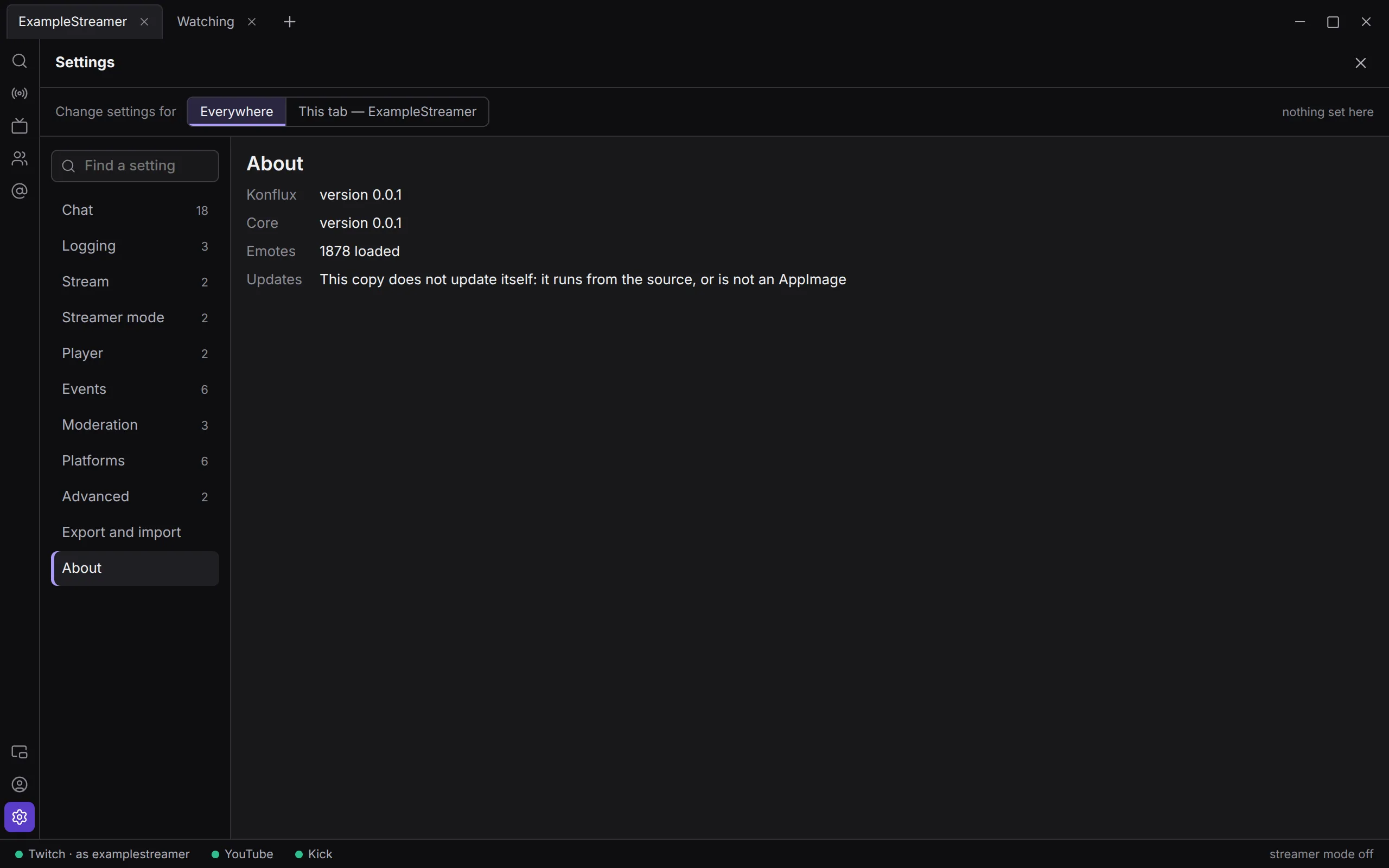
When an update is refused or fails
Section titled “When an update is refused or fails”These are shown only in Settings › About; the status bar says nothing about them. Your copy of Konflux is unchanged in every case. Most of them end with the time of the check, like (checked at 14:05).
| It says | What it means | What to do |
|---|---|---|
| Refused: the release listing is not signed with Konflux’s key for linux-x64 (on Windows: win32-x64) | The list of releases the server sent does not carry Konflux’s signature for your system. Nothing was downloaded. | Nothing. If it keeps happening, tell whoever gave you Konflux. |
| Refused: the release listing names no Konflux release | The signed list names a file that is not a Konflux AppImage, or on Windows not a Konflux installer. Nothing was downloaded. | As above. |
| Refused: the download does not match what was signed | The downloaded file is not the one that was signed, either when it arrived or when you pressed restart. Konflux deleted it. | As above. The next check tries again. |
| Could not install <version>: Konflux cannot replace itself in <folder>: the folder is not writable | There is a newer version, but Konflux cannot write to the folder its AppImage is in. Nothing was downloaded. | Move the AppImage to a folder you own. |
| Could not check: <address> answered <number> | The update server answered the check with an error. | Press Check now later. |
| Could not download <version>: <address> answered <number> | The server answered the download with an error. | Press Check now later. |
| Could not download <version>: the download stalled | The download sent nothing for a minute and was abandoned. | Press Check now later. |
| Could not download <version>: the download took over an hour | The download was still not finished after an hour and was abandoned. | Press Check now later, on a faster connection if you can. |
| Could not download <version>: the download is larger than any release | The download passed 600 MB and was stopped. | Tell Kirehb. |
| Could not check: <address> is larger than any listing | The list of releases was far larger than a real one, so it was not read. | Tell Kirehb. |
| Could not install <version>: the update could not be put in place: <reason> | The update was downloaded and checked, but replacing the AppImage failed when you pressed restart. | Check that the folder still has room and is writable, then try again, or download the new version yourself. |
| Could not install <version>: the installer stopped before it finished; this is still <version> | Windows only. The last update did not go in, and the old version is still here. Konflux does not check again by itself. | Press Check now to try again. If it happens again, restart the computer first, so nothing holds Konflux’s files. |
| Could not install <version>: the downloaded update is gone; Check now downloads it again | The download was removed before you pressed restart, for example by a second copy of Konflux. | Press Check now. |
| Could not install <version>: the installer could not be started: <reason> | Windows only. The installer was downloaded and checked, but Windows would not start it, for example because a virus scanner stopped it. Konflux stays open. | Download the new version from the Download page and install it over this one. |
| Could not check: or Could not download …: followed by any other message | Usually no connection to the update server. A check gives up after 15 seconds without an answer. | Check your connection, then press Check now. |
Copies that never update themselves
Section titled “Copies that never update themselves”- An AppImage in a folder you cannot write to, such as a system folder or a read-only disk, checks, and says Up to date while there is nothing newer; once there is, it can only say that it cannot replace itself. Move it to a folder you own.
- These copies never check, and Settings › About has no Check now. It says This copy does not update itself: and why:
- it runs from the source: a copy run from the source code;
- it is not an AppImage: a Linux copy started from files unpacked out of the AppImage;
- it was not installed with the Konflux installer: a Windows copy started from an unpacked folder, not installed;
- there are no updates for this system: anything other than 64-bit Linux or Windows on an Intel or AMD processor.
Remove Konflux
Section titled “Remove Konflux”On Linux
Section titled “On Linux”-
Optional: take your logins off this computer. Open Accounts on the rail and press sign out beside each account. If you saved a Pogly token, press Forget the token in the Pogly panel. Signing out removes Konflux’s copy of a login. To withdraw Konflux’s access completely, remove it in each platform’s own account settings.
-
Close Konflux.
-
Delete the AppImage file. If there is a hidden file beside it whose name starts with
.Konflux-Chat-and ends in.part, delete that too: it is an update download that did not finish. -
Optional: remove your data. Delete these folders:
~/.config/konflux: settings, tabs, streamers, the chat log with your notes and nicknames, saved evidence and import backups;~/.config/konflux-desktop: your sign-ins on the platforms’ own pages, and Pogly’s editor;~/.cache/konflux: only there if you used Forget this person….
This cannot be undone. To keep your setup for later, export it first under Settings › Export and import.
-
If you added a menu entry for Konflux, remove it too.
If you skipped step 1, your logins stay in the system keyring, in entries named after konflux. Your desktop’s password manager can delete them.
On Windows
Section titled “On Windows”-
Optional: take your logins off this computer, as in step 1 above.
-
Close Konflux.
-
Open Settings › Apps › Installed apps, find Konflux Chat, and choose Uninstall. This removes the program and its shortcuts.
-
Optional: remove your data. Delete these folders; type each into File Explorer’s address bar to find it:
%APPDATA%\konflux: settings, tabs, streamers, the chat log with your notes and nicknames, saved evidence and import backups;%APPDATA%\konflux-desktop: your sign-ins on the platforms’ own pages, and Pogly’s editor;%LOCALAPPDATA%\konflux: held copies from Forget this person…, and an update download, if either is there;%LOCALAPPDATA%\konflux-desktop-updater: the installer’s copy of itself.
This cannot be undone. To keep your setup for later, export it first under Settings › Export and import.
If you skipped step 1, your logins stay in Credential Manager › Windows Credentials, in entries whose names end in .konflux. You can remove them there.
Not yet
Section titled “Not yet”- A signed Windows installer. Until then Windows warns before it runs, and Smart App Control blocks it.