The window
The Konflux window has four parts: the tab row along the top, the icon rail down the left, the chats in the middle, and the status bar along the bottom. Tabs and splits hold chats and nothing else; everything else opens from the rail.
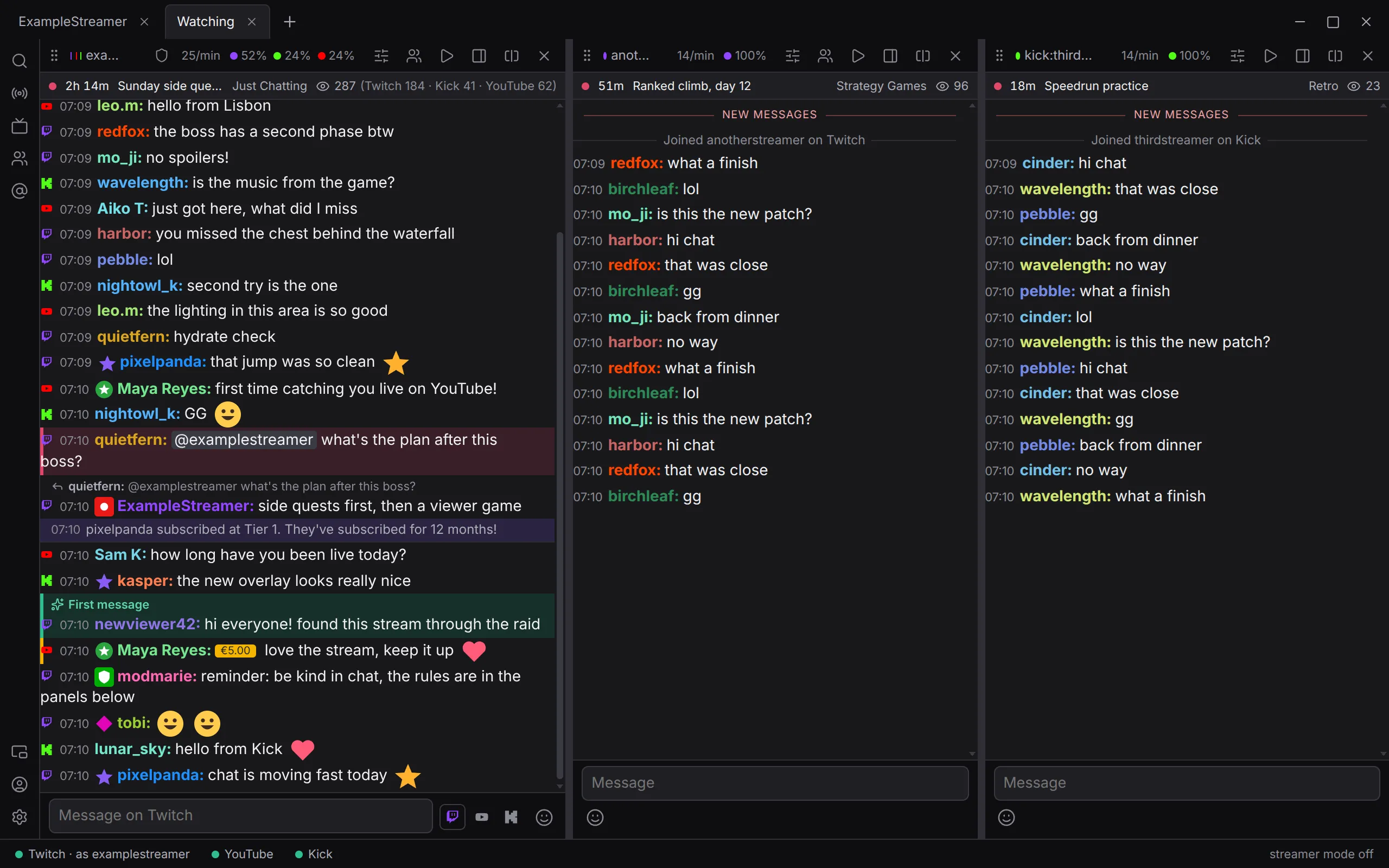
The tab row is also the window’s title bar. Drag an empty part of it to move the window, and double-click it to maximise. Minimise, Maximise and Close sit at its right end. Konflux asks for a window 560 pixels wide and 900 tall each time it starts; it does not remember a size you give it.
A tab holds one or more splits, side by side. Every tab keeps running while you look at another one, so no chat misses messages.
A tab is named after the channels in it, unless you give it a name. A tab opened from Live or Streamers carries the streamer’s name.
Open, switch and close tabs
Section titled “Open, switch and close tabs”- Open: opening a streamer from Live or Streamers opens a tab for them. The + at the end of the tab row (or Ctrl+T) opens a chat in a new tab. To put a chat beside another one instead, see Add a split.
- Switch: click the tab.
- Close: click the ✕ on the tab, middle-click the tab, or press Ctrl+W. You can also press Delete on a tab that has the keyboard focus, or choose Close tab from its menu. Ctrl+W does nothing while you are typing, so a half-written message is safe.
Closing a tab cannot be undone, and it throws away any settings you made for that tab and its splits.
A tab you are not looking at shows a count when someone mentions you in one of its chats (Mentions you have not seen).
The tab menu
Section titled “The tab menu”Right-click a tab for its menu. With the keyboard, focus the tab and press the Menu key or Shift+F10.
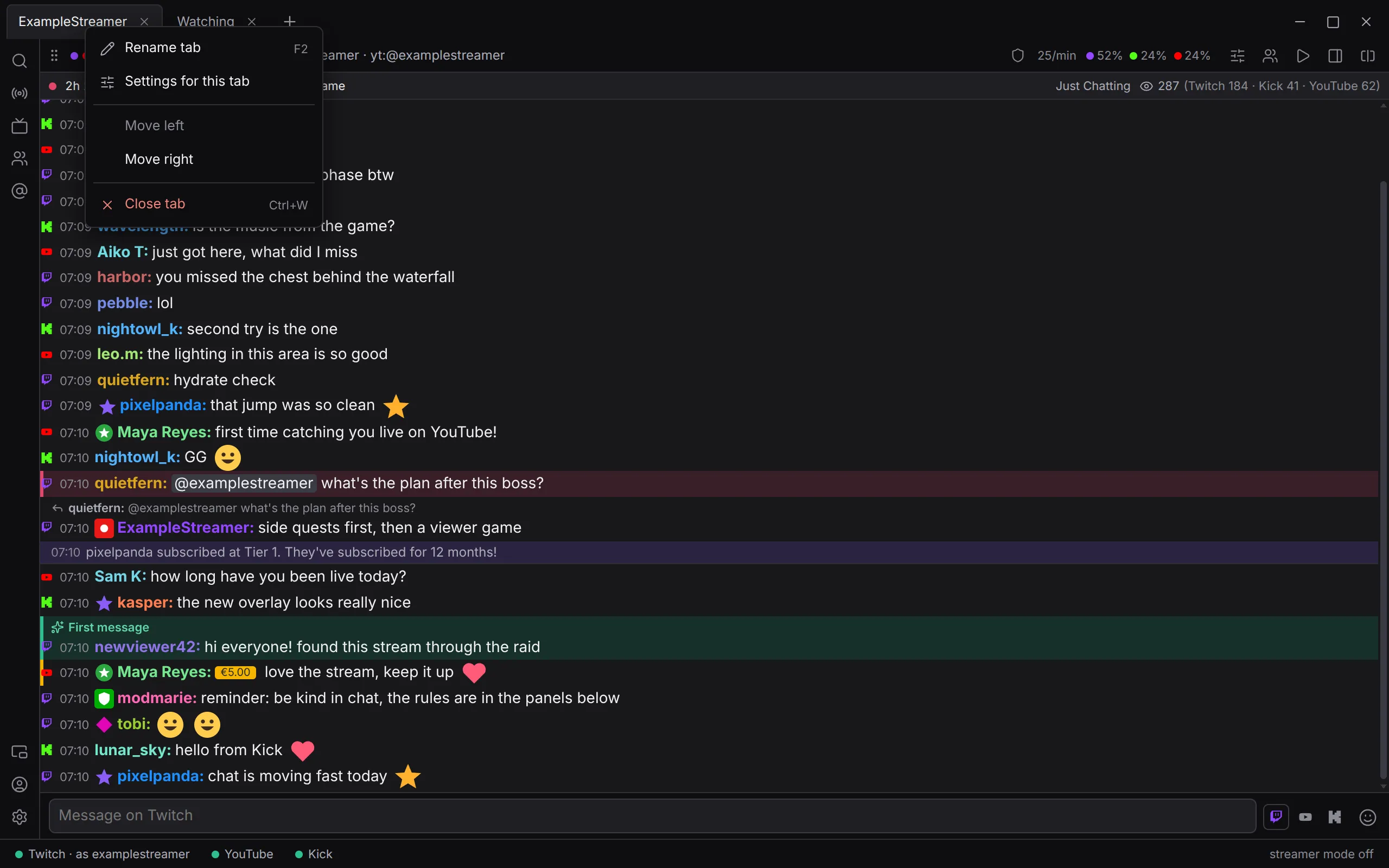
| Menu item | What it does |
|---|---|
| Rename tab (F2) | Turns the tab’s name into a box. Enter keeps the new name; Esc, or clicking elsewhere, keeps the old one. Clear the box to name the tab after its channels again. |
| Settings for this tab | Opens Settings for this tab only. See Settings. |
| Move left, Move right | Moves the tab one place along the row. |
| Close tab (Ctrl+W) | Closes the tab. |
F2 also renames a tab that has the keyboard focus.
Splits
Section titled “Splits”A split is one chat view. It can show one channel, or merge several channels into one list: one streamer’s Twitch, YouTube and Kick, for example.
Add a split
Section titled “Add a split”- In the header of the split you want it beside, click Add a chat beside this one (the button with a split square, just left of the ✕). Or press Ctrl+Shift+T: it adds beside the split you are working in.
- Type or paste one or more channels, separated by spaces or commas. First steps lists every form Konflux accepts.
- Press Enter or click Add beside.
The new split opens right after that split, in the same tab. Several channels typed together become one merged split. The + at the end of the tab row opens a chat in a new tab instead.
Change what a split shows
Section titled “Change what a split shows”Click the split’s name in its header (a pencil appears when you point at it). The name turns into a box: change the channels and press Enter. Esc, or clicking elsewhere, leaves it as it was.
Move and resize splits
Section titled “Move and resize splits”- Move: drag the grip at the left end of a split’s header onto another split, and it takes that split’s place. With the keyboard, focus the grip and press ← or →.
- Resize: drag the bar between two splits. Double-click the bar to give every split in the tab the same width. With the keyboard, focus the bar and use the arrow keys. A split is never made narrower than 120 pixels by dragging.
When the window is too narrow for every split to be at least 260 pixels wide, the splits stack from top to bottom instead. The bars between them then change their heights.
Close a split
Section titled “Close a split”Click the ✕ at the right end of the split’s header. It is only there when the tab has more than one split; to close the last one, close the tab. Closing a split throws away any settings you made for it.
The split header
Section titled “The split header”
From left to right, a split’s header can show:
| Item | What it is |
|---|---|
| Grip | Drag to move the split (Drag to move this split — or ← →). |
| Coloured dots and the name | One dot per platform in the split, then its channels. Point at a dot to see whether that platform is live, for how long and how many are watching, or that Konflux could not find out. Click the name to change the channels. |
| Shield | Twitch’s Shield Mode, in Twitch channels where your role allows it. See Moderating. |
| Top chat | Shown when this split reads YouTube’s filtered Top chat rather than everything: Settings › Platforms › YouTube chat view, default Everything said. Point at it for why. |
| Messages per minute | How many messages arrived in the last minute, such as 42/min, and each platform’s share. |
| View mode | mods only, subs+ only or no special characters when this split hides some messages from you, through Show messages from (default Everyone) or Hide messages with special characters (default off), both under Settings › Chat. Only you see the difference. |
| overridden here | This split has settings of its own. |
| Sliders button | Settings for this split. |
| People button | Who is in the chat, in a window of its own. Only in splits with a Twitch channel; Twitch shows the list to the broadcaster and moderators. |
| Play button | Watch in a player — streamlink, or mpv. With several channels in the split, it asks which. |
| Drawer button | The platform’s own chat — points, polls, predictions. See The native drawer. |
| Split button | Add a chat beside this one: opens the box for a chat that goes right after this split (Ctrl+Shift+T). |
| ✕ | Close split. |
The stream strip
Section titled “The stream strip”Below the header, while something in the split is live, a strip shows how long it has been live, the title, the category and the number of viewers, in total and per platform. Konflux asks once a minute while the tab is on screen. Point at the strip to see when it last asked, and which platforms it could not ask.
To turn it off, set Settings › Stream › Stream strip to Never. The default is While something here is live.
One platform per split
Section titled “One platform per split”Konflux has no single command yet that splits a merged chat into one split per platform. To watch each platform in a column of its own, open each channel as its own split: open examplestreamer, then click Add a chat beside this one in its header and type kick:examplestreamer, and so on. Each split then has its own settings, so, for example, only one of them can hide deleted messages.
The icon rail and panels
Section titled “The icon rail and panels”The rail on the left opens panels. A panel covers the chats but never the rail. Click the icon again, click the panel’s ✕, or press Esc to close it. One panel is open at a time.
| Icon | Panel |
|---|---|
| Search (Ctrl+F) | Search everything this computer has recorded, by words or by who said them. |
| Live | Which of your streamers are live. Add streamers and import the channels you follow. See First steps. |
| Streamers | The streamers you watch: open them, link their platforms, remove them. |
| People | Everyone you have linked across platforms, streamers included, with the names and colours you gave them. |
| Mentions | Messages that mention you, and anything a highlight rule sends there. A badge counts the ones you have not seen. |
| Held for review | Twitch AutoMod messages waiting for a decision in channels you moderate. The icon appears once something has been held, with a count. See Moderating. |
| Pogly | Switch scenes on your Pogly stream overlay, and open its editor. |
| Accounts | Sign in to Twitch, YouTube and Kick, and choose which account sends. See Accounts and signing in. |
| Settings | See Settings. |
Pogly, Accounts and Settings sit at the bottom of the rail.
Keys that work anywhere in the window
Section titled “Keys that work anywhere in the window”| Key | What it does |
|---|---|
| Ctrl+T | Opens the box for opening a chat in a new tab. |
| Ctrl+Shift+T | Opens the box for adding a chat beside the split you are working in. |
| Ctrl+F | Opens Search, except while you type in a message box. |
| Ctrl+L | Puts the cursor in the message box of the split you are working in, closing any panel. |
| Ctrl+W | Closes the tab in front, except while you are typing. |
| Esc | Closes whatever opened last: a menu, a panel, a box. With nothing else open, it closes the native drawer, unless you are typing in a box. |
Keyboard shortcuts lists every key.
The native drawer
Section titled “The native drawer”The native drawer shows a platform’s own chat page beside Konflux’s chat. Channel points, polls and predictions work there, because it is the platform’s own page.
- In a split’s header, click the drawer button (The platform’s own chat — points, polls, predictions).
- The drawer opens on the right of the chats, 320 pixels wide. If the split has more than one chat, buttons at the top of the drawer switch between them; two chats on one platform are told apart by their channel names. The channel’s name is shown beside them.
- To close it, click the drawer button again, click Close drawer (✕), or press Esc when nothing else is open.
- One drawer at a time. Clicking the drawer button in another split switches the drawer to that split.
- In a narrow window (chat area under 700 pixels wide), the drawer lies over the chat instead of beside it, and the chat behind it dims. Click beside the drawer to close it.
- The first time, a note explains the drawer: The platform’s own chat page: points, polls and predictions work here, signed in on its own. The first time, it may ask about cookies; your answer is kept. Click Got it and it does not come back.
- Sign in there separately. The page has its own sign-in, separate from Accounts. Konflux keeps it, and your cookie answer, between restarts.
- YouTube only while live. YouTube’s own chat belongs to a broadcast, so its drawer opens only while the channel is live. Until then the drawer says YouTube’s own chat belongs to a broadcast, so it opens only while the channel is live.
- Links leave for your browser. A link that goes anywhere other than Twitch, YouTube, Kick or Google’s sign-in opens in your web browser.
Windows of their own
Section titled “Windows of their own”A split or a panel cannot be popped out into a window of its own yet. These do open in their own window:
- A person’s card, when you click a name in the chat. Set Settings › Chat › Open a person in their own window to off to show cards over the chat instead. It is on by default.
- Who is in the chat, from the people button in a Twitch split’s header.
- The chat around one message, from a message on a person’s card.
- Twitch’s own viewer card, from Twitch card on a person’s card, in Twitch channels you moderate.
- Pogly’s overlay editor, from the Pogly panel.
Bars under the tab row
Section titled “Bars under the tab row”Two kinds of bar can appear between the tab row and the chats:
- A notice, such as a sign-in that has expired, a chat Konflux could not open, or YouTube’s daily budget running low. Close it with its ✕ (Dismiss).
- The streamer mode offer, when OBS starts: OBS is running. followed by what streamer mode would hide, with Turn on, Not now and Don’t offer again. It only appears while Settings › Streamer mode › Streamer mode is Off and Offer it when OBS starts is on, which are the defaults.
The status bar
Section titled “The status bar”
From left to right, the status bar can show the following.
Konflux’s own state
Section titled “Konflux’s own state”Only shown while something is not simply running:
| It says | What it means |
|---|---|
| starting the core… | Konflux is starting. Normal for a moment at every start. |
| core stopped (code …) — restarting | The part of Konflux that connects to the chats stopped. Konflux starts it again by itself and the chats reconnect, but messages that arrived while it was down can be missing. |
| restarting the core (attempt …) | Konflux is starting it again. |
| core failed — … | It could not be started at all. |
One pill per platform
Section titled “One pill per platform”There is one pill for each platform that has a chat open in any tab, in the order Twitch, YouTube, Kick. Its dot and its words say how that platform’s chats are doing:
| Dot | The pill reads | What it means |
|---|---|---|
| Green | Twitch | Every Twitch chat is connected. |
| Green | Twitch · 2 waiting | Some are connected; that many are still connecting or waiting for a stream. |
| Grey | YouTube · connecting | All of them are still connecting. |
| Grey | YouTube · waiting | None is connected yet, and at least one is waiting for a stream to start. A YouTube channel that is not live waits like this. |
| Amber | Kick · reconnecting or Kick · ended | One chat has lost its connection and is reconnecting, or has ended for good. |
| Amber | Kick · 2 with trouble | Several chats have trouble. |
When you are signed in to Twitch, the Twitch pill also names your account, as in Twitch · as examplename: the account chat is read as. With Settings › Platforms › Read Twitch chat as your own account off, chat is read anonymously and the pill names nobody.
Point at a pill to see each of that platform’s chats and its state, with the reason when there is one. Click a pill to open Accounts.
Refused feeds
Section titled “Refused feeds”Some Twitch features arrive on feeds that Twitch only gives to moderators: messages AutoMod holds, and users Twitch flags as suspicious. When Twitch refuses one, the status bar shows a warning, for example AutoMod feed refused in examplestreamer, with — asking again at 14:05 when Konflux will try again by itself. With more than one, it reads like 2 Twitch feeds refused.
Point at the warning for each refused feed and Twitch’s reason. Where Konflux will not ask again by itself, the reason ends with a sign-in with the moderator permissions, or the moderator role, changes this.
The update button
Section titled “The update button”When an update has been downloaded and checked, Update <version> ready — restart appears. Click it to restart Konflux on the new version. See Install and update.
Streamer mode
Section titled “Streamer mode”At the right end: streamer mode off, streamer mode · waits for OBS, or, while it is on, streamer mode · switched on or streamer mode · OBS is running. Click it to switch streamer mode on or off. It follows Settings › Streamer mode › Streamer mode (default Off): a click sets it to On or Off. See Streamer tools.
Konflux’s version number is not in the status bar. It is under Settings › About.
Not yet
Section titled “Not yet”- One platform per split in one step: a single command that turns a merged split into one split per platform, and back.
- Pop-outs: a split or a panel in a window of its own.
- Muting a platform in a merged split by clicking its dot.