Reading chat
Konflux shows a streamer’s chat from Twitch, YouTube and Kick as one list, in the order messages arrive. You can read everything without signing in. Most settings on this page can differ from one view to the next; see Settings for one view.
One chat for one streamer
Section titled “One chat for one streamer”There are two ways to open a merged chat:
- Open a streamer from Live or Streamers on the rail. Konflux shows all their platforms in one view.
- Click + in the tab strip (or press Ctrl+T) and type channels separated by spaces, then Open chat. The chat opens in a new tab. A plain name is a Twitch channel. Write
kick:namefor Kick andyt:@handlefor YouTube, or paste a link. For example:examplestreamer yt:@examplestreamer kick:examplestreamer.
Each line reads: platform mark, time, badges, name, message.
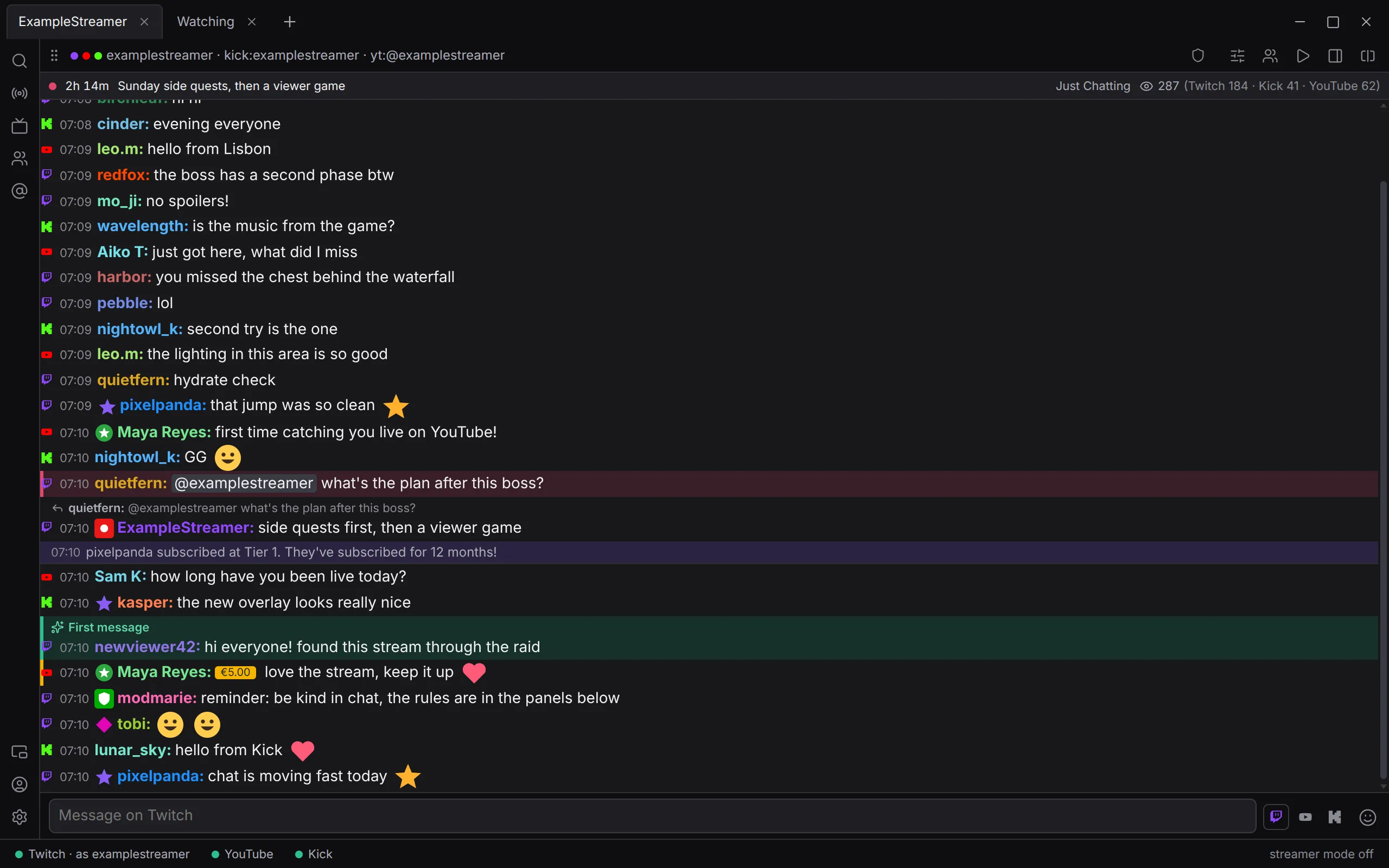
- Channel names on lines. When two chats from the same platform share a view, each line also names its channel.
- The header. Each platform in the view has a coloured dot. Hover it to see whether that platform is live, for how long and how many are watching. The channel names beside the dots are a button: click them to change what the view shows. On the right, a counter shows messages in the last minute and each platform’s share.
- The stream strip. While something in the view is live, a strip under the header shows how long, the title, the category and the viewers. Whether a Twitch channel is live is only known when you are signed in to Twitch.
- Where you moderate, lines carry more: hover tools, spam marks and Twitch’s flags. See Moderating with Konflux.
The platform marker
Section titled “The platform marker”How each line shows where it came from. Set it under Settings › Chat › Platform marker. The default is Small logo.
| Option | What you see |
|---|---|
| Coloured edge line | A thin bar in the platform’s colour at the start of the line |
| Small logo | The platform’s logo, in its colour |
| Letter | T, Y or K |
| Tinted timestamp | The time, coloured like the platform |
| None | Nothing |
In a view of one platform, the marker is hidden whichever you choose.
Timestamps
Section titled “Timestamps”Each line shows the time it was sent, on a 24-hour clock. Lines from an earlier day show the date as well, so an old conversation is not mistaken for today’s. To hide times, turn off Settings › Chat › Show timestamps (on by default).
History when you open a chat
Section titled “History when you open a chat”What you see when a chat opens depends on the platform.
- Twitch sends nothing to a new viewer. Konflux fills the chat with up to 60 recent messages from recent-messages.robotty.de, a third-party service other chat clients use too. To turn it off, use Settings › Platforms › Show recent messages when opening a Twitch chat (on by default).
- YouTube replays its own recent messages when Konflux joins a live chat. When the channel is not live, the chat says, for example, “@examplestreamer is not live — waiting for the stream to start”. Konflux keeps watching and joins when the stream starts.
- Kick offers no history.
Your own log. Konflux keeps every message it receives on this computer (Settings › Logging › Keep a local message log, on by default). When a chat opens with little to show, and whenever you scroll near the top, Konflux loads older messages from that log, 200 at a time. That is how a Kick chat shows what Konflux recorded there before, and how a YouTube channel that is not live shows its last broadcast.
How history from several platforms is placed
Section titled “How history from several platforms is placed”Each platform’s history arrives when its own request finishes. Konflux puts every earlier line in place by its time among the other earlier lines, so the conversation reads in order rather than one platform after another. Earlier lines always sit above the live ones. Live messages keep the order they arrive in.
Where the earlier lines end, a line says “You joined here — the lines above are from before”. When the first live line is the “Joined … on …” divider, that divider marks the place instead.
Scrolling and pausing
Section titled “Scrolling and pausing”Scrolling up
Section titled “Scrolling up”Scroll up and the chat stops following new messages. They still arrive below, and a Jump to newest button appears, with a count of what is new. Click it to go back to the bottom.
Pausing under the pointer
Section titled “Pausing under the pointer”While the pointer is over a chat that is following new messages, nothing on screen moves. New messages land below the view instead, and a badge says “frozen” with the count. That way a line cannot move away just as you click it. Move the pointer off the chat and it catches up.
If the pointer rests without moving, the chat lets go after 10 seconds and jumps to the newest message. Moving the pointer holds it again.
| Setting (Settings › Chat) | Default | What it does |
|---|---|---|
| Pause while the pointer is over the chat | On | Holds the chat still under the pointer |
| Let go when the pointer rests for | 10 s | How long a resting pointer holds it. 0 holds while the pointer is there |
The unread line
Section titled “The unread line”A line labelled New messages marks where the messages you have not seen begin. It appears whenever you look away: when you scroll up, switch to another tab, or the chat holds still under the pointer. It fades a while after you come back. A line with nothing after it is not shown.
To change how long it stays, use Settings › Chat › Keep the unread line for (20 seconds by default). 0 keeps it until you next look away.
Replies
Section titled “Replies”On Twitch and Kick, a reply shows a small line above it: an arrow, who it answers and the start of what they said. The platform sends that along with the reply, so it shows even when the original is older than your chat.
- Click the line to jump to the message it answers. If that message is no longer in the chat, the line briefly says “no longer in view”.
- YouTube has no replies, so its messages never have this line.
- To hide these lines, turn off Settings › Chat › Show what a reply answers (on by default).
To write a reply, see Writing messages.
Deleted messages, timeouts and bans
Section titled “Deleted messages, timeouts and bans”When a moderator deletes a message, Konflux keeps it on screen, struck through and greyed but readable. Choose something else under Settings › Chat › Deleted messages:
| Option | What you see |
|---|---|
| Struck through but readable (default) | The words, struck through |
| Hidden | Nothing: the line goes |
| Replaced by a placeholder | “message deleted” |
- Timeouts and bans. Everything the person said earlier in that chat is struck through.
- A cleared chat (Twitch’s
/clear). Everything said before it is struck through, and a line says “Chat cleared”. - Replies to a removed message. Their quote of it is struck through too, or says “message deleted”.
Where you moderate, a line also says who was timed out or banned, for example “someviewer timed out for 10 min”. Viewers do not see these lines by default. Change it under Settings › Chat › Show timeouts and bans as they happen: Only where you moderate (default), Always or Never.
In streamer mode the words of a deleted message are never shown.
Events: subs, gifts, raids and announcements
Section titled “Events: subs, gifts, raids and announcements”An event gets a tinted line of its own, in the platform’s own words, above anything the person wrote with it. Konflux shows events it does not recognise too.
| Setting (Settings › Events) | Default | What it does |
|---|---|---|
| Show subscriptions | On | Subscriptions and resubscriptions; YouTube memberships |
| Show gifted subscriptions | On | Gifted subs, gift bombs, YouTube gifted memberships, Kick gift batches |
| One line per gift bomb | On | One line for a Twitch gift bomb, with a running count of gifts delivered. Hover it for who received them |
| Show raids | On | Raids coming in, raids a Twitch channel sends, and Kick hosts |
| Show announcements | On | Twitch announcements |
| Compact event lines | Off | The event on the same line as what the person wrote |
- Raids a Twitch channel sends. When a Twitch channel you have open raids another, its chat says so, for example “kirehb raided Cooler_User with 1,234 viewers”, with a button, Open Cooler_User, that opens that channel in a tab of its own, or brings its tab forward if you have one. This needs a Twitch sign-in. Twitch lets one sign-in watch about ten channels this way, your own not counted; with more open, the rest are not watched. YouTube and Kick are not covered yet.
- Bits and Super Chats. A paid message has a gold edge and shows the amount before the message, such as “500 bits”.
- Highlighted messages. Twitch’s “Highlight My Message” reward shows as a purple block.
System lines
Section titled “System lines”Lines about the chat itself show the platform’s mark, a small icon and a sentence:
- “Joined examplestreamer on Twitch”: a divider across the chat when Konflux joins.
- YouTube’s “is not live — waiting for the stream to start”, a divider across as well, since it comes when Konflux joins.
- “Connecting”, and “Reconnecting —” with the reason.
- “Ended —” with the reason, in red, when a chat has stopped for good.
- Room modes turning on or off on Twitch, for example “Slow mode on, 30 s” or “Followers-only off”.
The status bar at the bottom of the window shows each platform with a chat open. Green is connected, grey is connecting or waiting for a stream, amber is reconnecting or ended. Hover a platform there to see each chat’s state.
Emotes
Section titled “Emotes”Konflux draws each platform’s own emotes: Twitch’s, Kick’s and YouTube channel emoji. It adds emotes from 7TV, BetterTTV and FrankerFaceZ where they serve the platform:
| Twitch | YouTube | Kick | |
|---|---|---|---|
| 7TV | Yes | Yes | Yes |
| BetterTTV | Yes | Yes | No |
| FrankerFaceZ | Yes | No | No |
- Shared emotes. Konflux lends the 7TV, BetterTTV and FrankerFaceZ emotes of each chat you have open to all the others. That is how a streamer’s Twitch emotes show up in their YouTube and Kick messages. It applies to every open chat, not only one streamer’s.
- Zero-width emotes are drawn on top of the emote before them.
- Hover an emote to see its name.
- Cheers on Twitch are drawn as pictures once you are signed in to Twitch.
- Animation. Settings › Chat › Animated emotes: Always, Only while the window is focused (default), Only on hover or Never. It applies to the whole window. Animation is what costs processor time in a busy chat.
Badges
Section titled “Badges”Badges show as pictures where the platform provides them. Hover one for the platform’s own description.
- Twitch. The pictures need a Twitch sign-in. Signed out, Twitch badges show as short text labels.
- YouTube. Members’ badges are pictures. Moderators, the channel’s owner and verified accounts get text labels: “moderator”, “broadcaster” and “verified”.
- Kick. Pictures where Kick provides them, text labels for the rest.
Name colours
Section titled “Name colours”Twitch and Kick send the colour each person chose. Konflux lightens very dark Twitch colours so they stay readable on the dark background.
YouTube has no name colours. So that YouTube names do not all look alike, Konflux gives each YouTube chatter a colour of its own, made from their account ID. The same person always gets the same colour. To turn this off, use Settings › Chat › Give every chatter a colour (on by default).
If you have linked someone’s accounts across platforms, their YouTube lines wear the colour they chose on Twitch or Kick, once a line of theirs in that colour has appeared in the same view. A colour you choose for someone yourself comes first. See People.
YouTube’s two chat views
Section titled “YouTube’s two chat views”YouTube’s own site shows “Top chat” by default, which leaves out messages YouTube judges less interesting. Konflux reads everything said.
| Setting (Settings › Platforms) | Default | What it does |
|---|---|---|
| YouTube chat view | Everything said | Or Top chat — YouTube’s selection |
| Mark what Top chat would hide | Off | Adds “· not in Top chat” to the lines Top chat leaves out, a few seconds after they arrive. Costs a second connection to that chat while on |
- With Top chat chosen, the view’s header shows Top chat, because missing messages would otherwise look like a quiet chat.
- Hover the YouTube dot in the header to see which view it reads.
- Your log keeps everything said, whichever view you choose.
First messages and returning chatters
Section titled “First messages and returning chatters”Twitch marks a person’s first message in a channel, and people coming back after a while. Konflux shows First message (green) or Returning (blue) on the small line above the message, and tints the row. YouTube and Kick say nothing about either, so Konflux does not guess.
Folding repeated messages
Section titled “Folding repeated messages”In a busy chat the same message can arrive many times in a few seconds. Turn on Settings › Chat › Fold repeated messages (off by default) to count repeats on the first copy instead of drawing each one.
- The first copy shows a count, such as “×12”. Where you moderate, it also says how many people.
- Hover the count to see who else said it. Click it to show every copy.
- Only repeats within 20 seconds and 30 lines are folded.
- Your own messages and lines a rule has coloured are never folded.
View modes
Section titled “View modes”A view can show fewer messages without changing anything in the chat itself. Only you see the difference.
| Setting (Settings › Chat) | Default | What it does |
|---|---|---|
| Show messages from | Everyone | Or Subscribers, members, VIPs and moderators, or Moderators and the broadcaster |
| Hide messages with special characters | Off | Hides messages with any character outside plain English letters, digits and punctuation, emoji and umlauts included |
- Your own messages, held messages and events always show.
- The header of a filtered view says so: “mods only”, “subs+ only” or “no special characters”.
- For one split, the commands
/localsub,/localmod,/localasciiand theiroffforms do the same. See Commands.
Streamer mode
Section titled “Streamer mode”Streamer mode keeps private things off the screen while this window may be on stream:
- your notes about people, and the nicknames and colours you gave them;
- the colours linked accounts share;
- the words of deleted and held messages;
- Twitch’s suspicious-user flags;
- desktop pop-ups and sounds.
The chat itself stays: it is public already.
- Switch it with the button at the right of the status bar. It reads “streamer mode off”, “streamer mode · waits for OBS”, or “streamer mode ·” and why it is on. Click it to switch.
- Settings › Streamer mode › Streamer mode: Off (default), On, or On while OBS is running.
- Offer it when OBS starts (on by default). When OBS starts while streamer mode is off, a banner offers Turn on, Not now and Don’t offer again.
Other reading settings
Section titled “Other reading settings”| Setting (Settings › Chat) | Default | What it does |
|---|---|---|
| Text size | 14 px | From 11 to 20 px |
| Shade every other message | Off | Shades alternate lines |
| Messages kept in view | 2000 | How many lines a view holds, from 100 to 10,000. Older ones stay in the log and can be searched |
Settings for one view
Section titled “Settings for one view”Most chat settings can be set for everything, for one tab or for one split.
- For one split: the sliders button in the split’s header (Settings for this split).
- For one tab: right-click the tab and choose Settings for this tab.
- In Settings, the Change settings for bar picks where a change goes: Everywhere, This tab — and the tab’s name, or This split.
A split with its own settings says “overridden here” in its header.
Not yet
Section titled “Not yet”- Only on hover for animated emotes is listed, but behaves like Only while the window is focused until it is built.
- A switch to turn shared emotes off for one streamer.
- Live emote updates. Today a new 7TV, BetterTTV or FrankerFaceZ emote shows only after Konflux next joins that chat, for example after a restart.
- A thread view that follows a chain of replies.
- Pinned messages.