Accounts and signing in
You can read chat without signing in to anything. Sign in when you want to write, reply or moderate, or to see the things a platform only shows to a signed-in account. Each platform is signed in separately, in your own browser, so your passwords never pass through Konflux.
Reading needs no sign-in
Section titled “Reading needs no sign-in”Open any chat without an account. Konflux reads Twitch, YouTube and Kick chat anonymously, and reading YouTube never uses your Google login even when you have one.
Signing in adds:
- sending messages and replies on that platform;
- moderation tools, in channels where your account is a moderator or the broadcaster;
- Twitch’s badge pictures and cheer pictures (without a Twitch sign-in, Twitch badges show as short text labels);
- whether Twitch channels are live, on the Live page and above a chat;
- account age on a person’s card (Twitch), and their follow date where you moderate;
- being told when someone mentions you, in the Mentions panel;
- importing the channels you follow on Twitch and YouTube, from the Live page.
Open Accounts
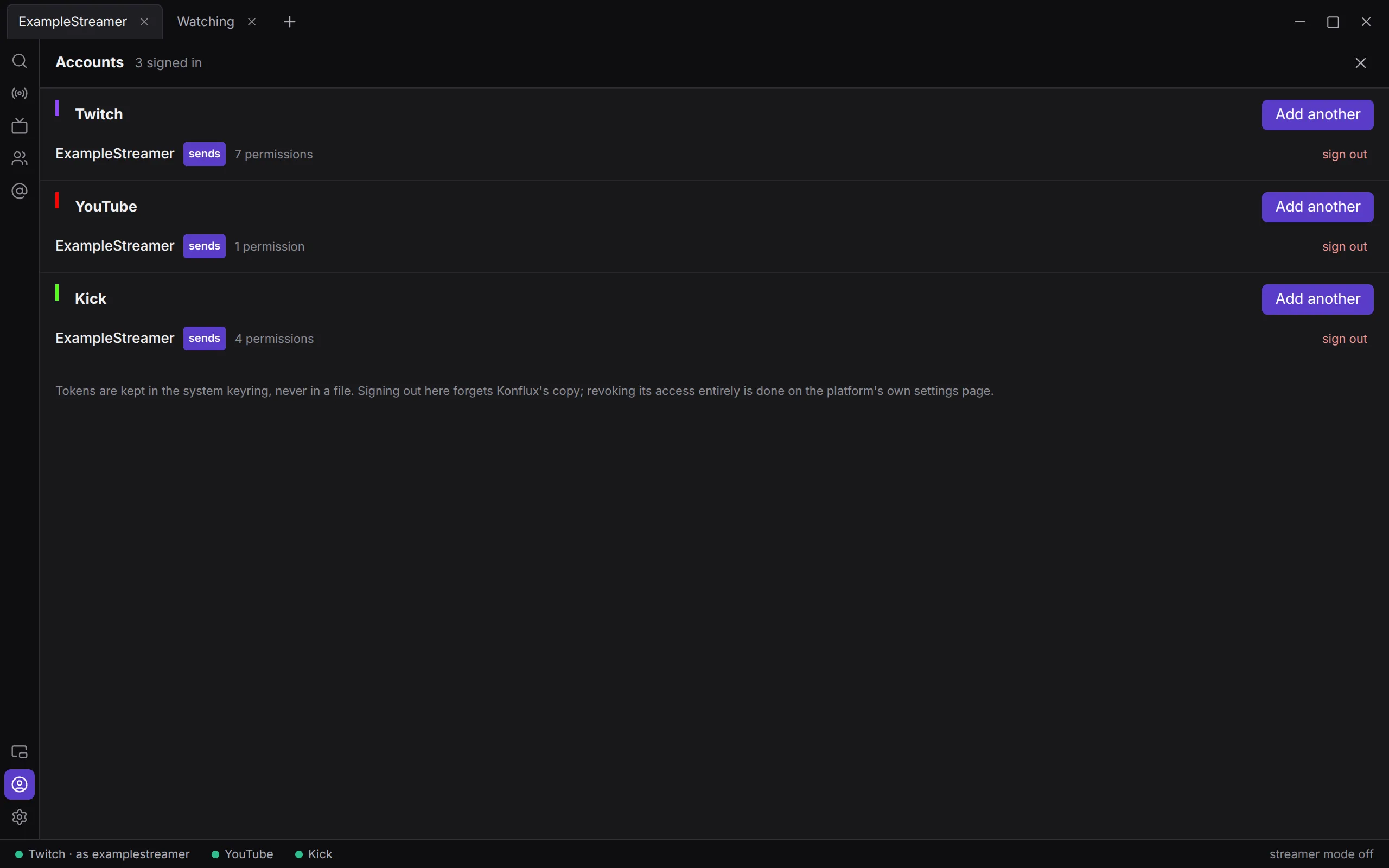
Section titled “Open Accounts”Click Accounts on the rail at the left of the window (the person icon near the bottom). You can also click a platform’s name in the status bar at the bottom, or Sign in… in a message box that has nowhere to send yet.
The panel has one section each for Twitch, YouTube and Kick, and its header counts how many accounts are signed in.
Sign in to Twitch
Section titled “Sign in to Twitch”Twitch signs you in with a short code.
- Under Twitch, click Sign in.
- Konflux shows a code in large letters, with a link under it.
- Click the link. Twitch’s activation page opens in your browser.
- Sign in to Twitch there if it asks. If it asks for the code, type the one Konflux shows. Approve.
- Come back to Konflux. The panel updates by itself and says “Signed in as” and your name.
The panel says how many minutes the code stays valid. If it runs out, click Sign in again for a new one.
Konflux has its Twitch app identity built in, so there is nothing to set up first.
Sign in to YouTube
Section titled “Sign in to YouTube”YouTube signs you in through Google’s own sign-in page.
- Under YouTube, click Sign in.
- Click Open the consent page. Google’s sign-in opens in your browser.
- Choose your Google account. If it has more than one YouTube channel, choose the channel you want to chat as.
- Approve. The browser tab says “Konflux is signed in. You can close this tab.”
- Konflux says “Signed in as” and the channel’s name.
A Google account with no YouTube channel cannot sign in: Konflux says “that Google account has no YouTube channel”.
YouTube in the tester release
Section titled “YouTube in the tester release”Konflux’s Google app is open to everyone, but Google has not verified it yet. For you, that means:
- Google warns first. Before its usual page asking what to allow, Google says it has not verified the app. To sign in, go on past the warning, through its advanced options.
- Up to 100 Google accounts can sign in, in all, until the app is verified. Google counts each new account once, for good (Google’s help on unverified apps). If Google refuses your sign-in, tell Kirehb at contact@konflux.app.
Sending on YouTube spends from a daily budget of 10,000 units, 50 units a message (see Writing messages). In the tester release that budget belongs to Konflux’s Google app, so all testers share it. Konflux can only count what your own computer has spent.
Sign in to Kick
Section titled “Sign in to Kick”Kick signs you in through Kick’s own page.
- Under Kick, click Sign in.
- Click Open the consent page. Kick’s page opens in your browser.
- Sign in to Kick there if it asks, and approve.
- The browser tab says “Konflux is signed in. You can close this tab.” Konflux says “Signed in as” and your name.
Kick requires an app secret for the sign-in exchange and for every renewal of your login, and a desktop app cannot keep a secret. So that step goes through a small Konflux helper at auth.konflux.app. It holds Kick’s app secret and only relays the sign-in exchange and each renewal between Konflux and Kick. Your Kick password never reaches it. Your Kick login does pass through it on its way to Konflux. Reading Kick chat never uses the helper.
Kick in the tester release
Section titled “Kick in the tester release”The helper runs since 29 September 2026. If it ever cannot be reached, signing in to Kick fails after you approve on Kick’s page, and the Accounts panel says “Konflux’s Kick sign-in helper could not be reached”, with the reason; a Kick login then also stops renewing until it can be reached again. Reading Kick chat works as usual either way.
Several accounts on one platform
Section titled “Several accounts on one platform”Click Add another under a platform to sign in with a second account. Konflux signs in whichever account approves in the browser, so switch accounts there first.
Each account in the list shows:
- its name;
- sends, on the one account that sends on that platform;
- how many permissions it holds. Hover to see them listed.
The sending account. Your first account on a platform becomes the one that sends. Messages, replies and moderation on that platform all go out as it. To change it, click make sender beside another account.
Reading as one Twitch account and sending as another. With two or more Twitch accounts signed in, one account also carries reads: Twitch chat is read as that account. Click read as this beside another account to change it. This only applies while Settings › Platforms › Read Twitch chat as your own account is on, which it is by default. Turn it off to read Twitch anonymously even when signed in. YouTube and Kick are always read anonymously.
Signing out
Section titled “Signing out”Click sign out beside the account. Konflux deletes its copy of the login and removes the account from the list. If it was the sending account, another account on that platform takes over.
Signing out only removes Konflux’s copy. To withdraw Konflux’s access completely, remove it in the platform’s own account settings.
Where your logins are kept
Section titled “Where your logins are kept”Your logins are kept in your system’s keyring, never in a file.
- On Linux, Konflux uses the keyring your desktop provides through the Secret Service: KDE Wallet on KDE Plasma, GNOME Keyring on GNOME and many other desktops.
- A plain file in Konflux’s settings folder lists who is signed in and with which permissions. It holds no passwords and no tokens. See Install and update for where it is.
- Each login is one entry in the keyring. Its name contains
@konflux, so your desktop’s password manager can find it. - On Windows, Konflux uses Windows’ Credential Manager. Each login is one entry under Windows Credentials, named like
twitch:<number>.konflux. - Konflux renews a login shortly before it runs out, and writes the renewal back to the keyring.
If Konflux cannot reach a keyring, signing in fails with “could not reach the system keyring”. Make sure your desktop’s keyring is running, then try again.
What each platform is asked to allow
Section titled “What each platform is asked to allow”Konflux asks for a permission only once a feature uses it.
Twitch
Section titled “Twitch”Konflux asks Twitch for all of these at once, so one sign-in covers every feature. A permission is only as strong as your role: moderator permissions work only in channels where you moderate, and broadcaster permissions only in your own channel. Twitch enforces that.
| What it is for | Twitch permissions |
|---|---|
| Reading and sending chat as you | user:read:chat, user:write:chat, chat:read |
| Knowing where you moderate, so the right tools show | user:read:moderated_channels |
| Importing the channels you follow | user:read:follows |
| Deleting messages, timeouts, bans, unbans and warnings | moderator:manage:chat_messages, moderator:manage:banned_users, moderator:manage:warnings |
| Room modes such as slow mode and followers-only | moderator:manage:chat_settings |
| Shield Mode | moderator:manage:shield_mode |
| AutoMod’s held messages | moderator:manage:automod |
| Twitch’s suspicious-user flags, and marking someone monitored or restricted | moderator:read:suspicious_users, moderator:manage:suspicious_users |
| Announcements and shoutouts | moderator:manage:announcements, moderator:manage:shoutouts |
| The list of who is in the chat | moderator:read:chatters |
| A person’s follow date on their card | moderator:read:followers |
| Making someone a moderator or VIP, in your own channel | channel:manage:moderators, channel:manage:vips |
| A person’s subscription on their card, in your own channel | channel:read:subscriptions |
| Your stream’s title, category and markers, ad breaks, raids and clips | channel:manage:broadcast, channel:edit:commercial, channel:manage:raids, clips:edit |
| Blocking someone on your own account | user:manage:blocked_users |
YouTube
Section titled “YouTube”One permission, youtube.force-ssl. It is broad, and YouTube has nothing narrower that covers sending and moderating. Konflux uses it to send messages, to moderate, to import your subscriptions and to find out which channel you signed in as.
| What it is for | Kick permission |
|---|---|
| Knowing which account you signed in as | user:read |
| Sending messages | chat:write |
| Timeouts, bans and unbans | moderation:ban |
| Deleting messages | moderation:chat_message:manage |
When you need to sign in again
Section titled “When you need to sign in again”After an update that adds a feature. A login made before a feature existed lacks that feature’s permission. Konflux checks each login when it starts. Under one that is short, the Accounts panel says, for example: “This login predates 1 permission Konflux now asks for. Sign out and in again to grant it.” Click sign out, then Sign in.
Until you do, everything else keeps working and only the new feature is refused. Twitch refuses with “Missing scope”. Kick answers only “Unauthorized”, which can look like a broken login.
When a login cannot be renewed. Konflux renews logins by itself. If the platform refuses a renewal, you see it in one of two places. A message you send there comes back refused, with the reason just above the message box. Or a banner at the top of the window says, for example: “Your YouTube login (…) has expired and could not be renewed, so sending, moderating and badges have stopped working there. Sign in again from Accounts.” Click sign out beside that account, then Sign in.
If signing in does not work
Section titled “If signing in does not work”- The browser says “Konflux: the login was refused”. You declined, or the platform refused. Click Sign in and try again.
- The status line under the panel’s header shows a reason. It is the platform’s answer or Konflux’s, such as “the code expired”. Click Sign in to start again.
- You closed the browser tab before approving. Click Sign in again. For Kick, see the next point.
- Kick says a port is in use. Kick’s sign-in always comes back to the same local port, 47821, and another program is using it. Close the other program and try again. An unfinished Kick sign-in of Konflux’s own gives the port back after 5 minutes.
Not yet
Section titled “Not yet”- Signing in on Windows has not been tried with a real account. Konflux keeps the logins in Credential Manager there, as described above; that part is read in the code, not yet seen working.