First steps
Konflux reads chat without signing in. Paste a channel and its chat appears. Add a streamer once, link their channels on each platform, and they open together as one merged chat.
The first start
Section titled “The first start”The window has four parts:
- the tab row along the top, empty for now, with a + at its end;
- the icon rail down the left side;
- the chat area in the middle;
- the status bar along the bottom.
The chat area says Nothing open. and offers two buttons: + to open a chat, and Live to see which of your streamers are on. For a moment the status bar says starting the core… while Konflux gets ready.
Konflux does not open Live by itself. When you start it again later, it brings back the tabs you had open.
There are two ways to start reading:
- Open a chat for a channel, straight away. Good for a quick look.
- Add a streamer, so that Konflux keeps them: they show on Live, and all their platforms open together in a tab named after them.
Open a chat
Section titled “Open a chat”- Click + at the end of the tab row, or press Ctrl+T.
- Type or paste a channel, in any of the forms in the next section.
- Press Enter, or click Open chat.
The chat opens in a new tab. To put a chat beside one that is already open, use the Add a chat beside this one button in that split’s header instead (Add a split).
To merge several channels into one split, type them together, separated by spaces or commas:
examplestreamer kick:examplestreamer yt:@examplestreamerTheir messages then arrive in one list, and each line shows which platform it came from: a small logo by default, set under Settings › Chat › Platform marker.
If Konflux cannot read one of them as a channel, nothing opens. A note at the top of the window repeats what it could not read, says it is not a channel, and gives examples of what works. Close the note with its ✕.
Konflux writes every channel in a short form: a Twitch name on its own, kick: before a Kick name, and yt: before a YouTube handle or video. The split’s header shows them that way.
What you can type or paste
Section titled “What you can type or paste”A word on its own is read as a Twitch name. A prefix (twitch:, kick:, yt: or youtube:) or a link says which platform you mean. Prefixes work in capitals too.
Twitch
Section titled “Twitch”| You type | It opens |
|---|---|
examplestreamer or #examplestreamer |
The Twitch channel examplestreamer. |
twitch:examplestreamer |
The same. |
https://www.twitch.tv/examplestreamer |
The same. The https://www. part can be left out. |
A Twitch name has up to 25 characters: the letters a to z, digits and underscores. Capitals do not matter.
| You type | It opens |
|---|---|
kick:examplestreamer |
The Kick channel examplestreamer. |
https://kick.com/examplestreamer |
The same. The https:// part can be left out. |
A Kick name has up to 50 characters: the letters a to z, digits, underscores and hyphens. Capitals do not matter.
YouTube
Section titled “YouTube”A channel:
| You type | It opens |
|---|---|
yt:@examplestreamer |
The channel with the handle @examplestreamer. |
yt:examplestreamer |
The same: Konflux adds the @. |
youtube:@examplestreamer |
The same. |
https://www.youtube.com/@examplestreamer |
The same. |
https://www.youtube.com/channel/UC… or yt:UC… |
The channel with that channel ID. A channel ID starts with UC. |
One broadcast:
| You type | It opens |
|---|---|
https://www.youtube.com/watch?v=… |
That broadcast’s chat. |
https://youtu.be/… |
The same. |
https://www.youtube.com/live/… or a …/embed/… link |
The same. |
yt: followed by an 11-character video ID |
The same. |
A handle keeps its capitals, and can use letters from any alphabet, up to 100 characters. It cannot contain <, >, ", ', ?, #, &, %, a backslash or a backtick.
A word of exactly 11 letters, digits, hyphens or underscores after yt: is read as a video ID. If a handle happens to look like one, write it with its @.
A YouTube channel that is not live has no chat yet. Konflux watches for its stream, and the YouTube part of the status bar says waiting meanwhile. The chat starts when the stream does. Lines from an earlier broadcast can show in the meantime: point at the red YouTube dot in the split’s header and it says whether the channel is live.
Any page of a channel works
Section titled “Any page of a channel works”For Twitch and Kick links, Konflux takes the channel’s name from the start of the address, so a link to one of its pages, such as https://www.twitch.tv/examplestreamer/videos or its pop-out chat, opens examplestreamer. A link to a page of the site itself, such as a single video, a clip’s own address or a category, is refused.
What is not accepted
Section titled “What is not accepted”- A name with characters the platform does not allow.
- Other YouTube links: search pages,
/c/…and/user/…addresses, and a channel’s/liveor/streamspage. Use the channel’s @handle link instead. - More than one channel where only one fits: the boxes for adding a streamer and for linking a platform take one channel each.
Add a streamer
Section titled “Add a streamer”A streamer is an entry Konflux keeps: one person, with their channel on each platform they use.
- Click Live or Streamers on the rail.
- Paste one of their channels into the box at the top, Add a streamer to watch — any one of their links. Any form from the tables above works, except a single YouTube broadcast.
- Click Add streamer, or press Enter.
The streamer appears on Live, under Live now or Offline, and in Streamers. They are named after the channel you pasted. To rename them, use Name and look beside them in People.
A streamer is always kept by channel, never by broadcast. A link to one YouTube broadcast is refused with that is a link to one broadcast. Use the channel — youtube.com/@handle — so the link outlives the stream. Anything else Konflux cannot read is refused with could not make sense of and what you typed. The refusal shows under the box. On Live, your text also goes back into the box, ready to fix.
If the channel already belongs to one of your streamers, nothing changes. If it belongs to someone in People who is not a streamer yet, such as someone you linked from their card, that person becomes a streamer, with every account and note they already had.
Add their other platforms
Section titled “Add their other platforms”- Click Streamers on the rail.
- Next to the streamer, click Link platform.
- In the box that opens, Their channel on another platform, paste their channel on another platform and click Link.
Repeat for each platform. Under the streamer’s name, Streamers lists each linked channel, always in the order Twitch, YouTube, Kick. unlink removes one; removing a streamer’s last channel removes the streamer. Remove removes the streamer and all their links.
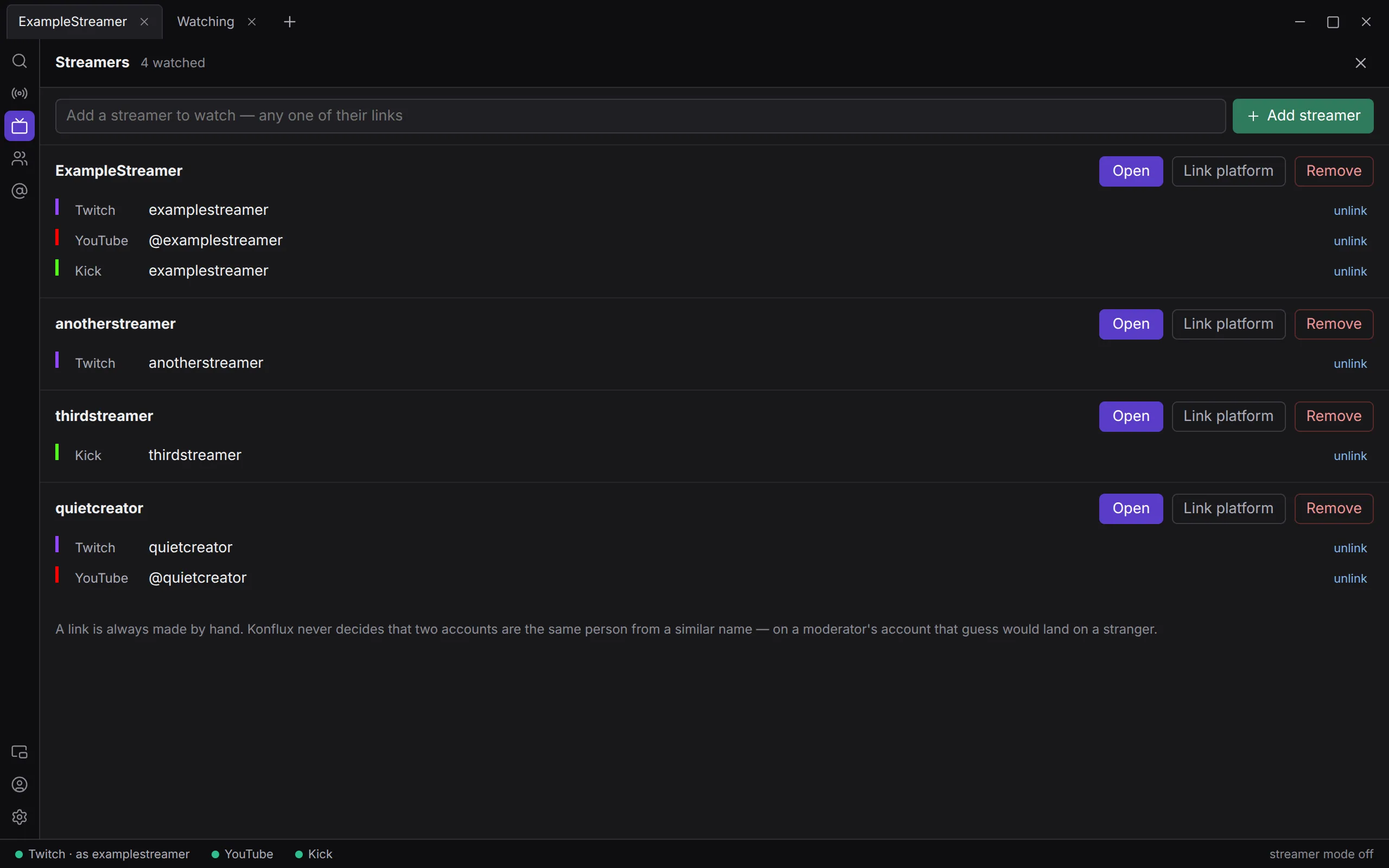
If a link is refused, the reason shows under the box at the top of the panel: the channel is already linked here, it is already linked to another streamer (named), or that is a link to one broadcast, not a channel.
Konflux never decides by itself that two accounts are the same person because their names look alike. Every link is one you make.
People on the rail can link accounts too, with Link account.
From a chat you have already merged
Section titled “From a chat you have already merged”If a split already merges channels on two or more platforms, and none of them is linked to anyone yet, Streamers offers to make it a streamer: These open chats could be one streamer — watched on the Live page, one tab named after them. Click Link as one streamer. If that split is the only one in its tab, the tab takes the streamer’s name.
Two channels on one platform
Section titled “Two channels on one platform”You can link two channels on the same platform to one streamer. Both then show in their merged chat, and each line names its channel.
To keep a second channel in its own tab instead, add it as a streamer of its own. Then, in People, click Same person as… beside it and choose the main streamer. Live shows it with same person as and the main streamer’s name. Separate undoes this.
Open a streamer
Section titled “Open a streamer”- On Live, click the streamer’s row.
- On Streamers, click Open next to them.
Konflux opens a tab named after the streamer, holding one split that merges all their linked channels. If a tab for them is already open, that tab comes to the front instead of a second one opening.
Both panels close when they open a streamer, so the tab is in front.
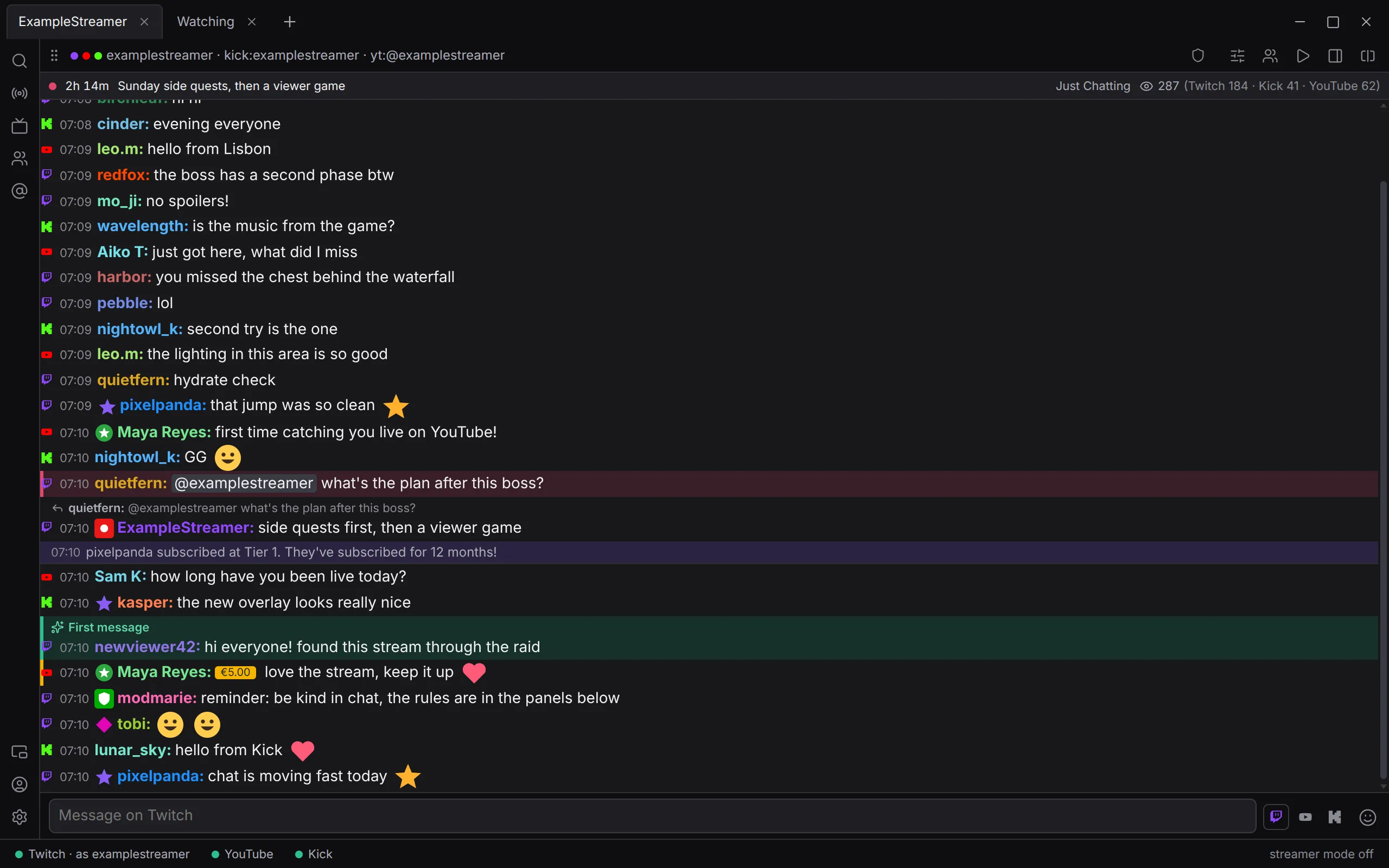
A tab keeps the channels it was opened with. After you link another platform, close the streamer’s tab and open them again, or add the channel to the split yourself: click the split’s name, add it and press Enter.
The Live list
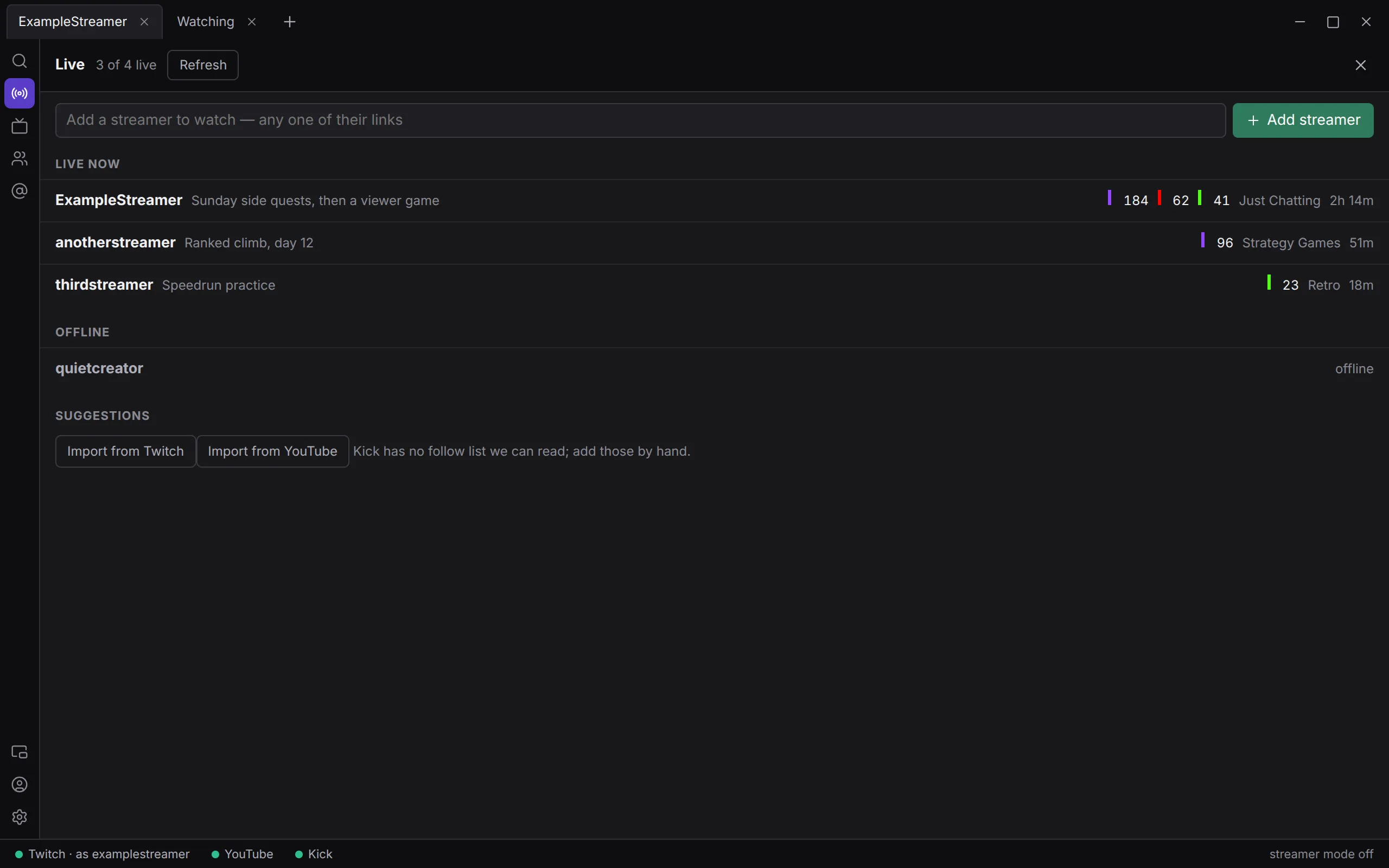
Section titled “The Live list”The top of Live says how many of your streamers are live, such as 2 of 5 live, or checking… while it asks, or not checked yet. Refresh asks again.
Konflux checks when you open Live (at most once a minute), when you add a streamer there, and when you press Refresh.
Live now
Section titled “Live now”Streamers who are live on at least one platform. Those live on the most platforms come first, then those with the most viewers. Each row shows their name, the stream’s title, a coloured mark and viewer count for each platform they are live on, the category, and how long they have been live, such as 3h 12m.
Click a row to open the streamer.
Offline
Section titled “Offline”Streamers who are not live anywhere, marked offline.
If a platform could not be checked, the row says so in amber instead, for example Twitch unknown. That is not the same as offline: Konflux could not find out. Twitch can only be checked once you are signed in to Twitch under Accounts (see Accounts and signing in), so until then every streamer with a Twitch channel shows Twitch unknown when they are not live elsewhere.
Suggestions
Section titled “Suggestions”Once you are signed in to Twitch or YouTube, Konflux can suggest channels you already follow there.
- Click Import from Twitch or Import from YouTube.
- Each suggestion has Add, which adds it as a streamer, and Dismiss.
Channels that are already in Konflux are left out. Suggestions are not kept: after a restart, import again. Kick has no follow list Konflux can read, so add Kick channels by hand.
Without a sign-in, this part says Sign in and Konflux can offer the channels you already follow.
Opening chats when Konflux starts
Section titled “Opening chats when Konflux starts”Channels written after the program’s name, separated by spaces, open in a tab when Konflux starts:
~/Applications/Konflux-Chat-<version>-x86_64.AppImage examplestreamer kick:examplestreamerIf a tab already shows exactly those channels, in one split, it comes to the front instead, however you wrote them: a link and a plain name for the same channel are the same.
Not yet
Section titled “Not yet”- Finding a streamer’s other platforms for you. Linking their YouTube or Kick is always done by hand today.
- Options for one streamer that follow them into any tab. Settings can differ per tab and per split, not yet per streamer.