Settings
Every setting in Konflux is in one place, the Settings panel. A setting can have one value everywhere and a different one for a single tab or a single split, and the panel always says where the value you see comes from.
Open Settings
Section titled “Open Settings”There are three ways in, and each starts at a different level:
- Settings on the rail (the gear at the bottom) opens at Everywhere.
- Settings for this tab, in a tab’s menu (right-click the tab), opens at that tab.
- Settings for this split, the sliders button in a split’s header, opens at that split.
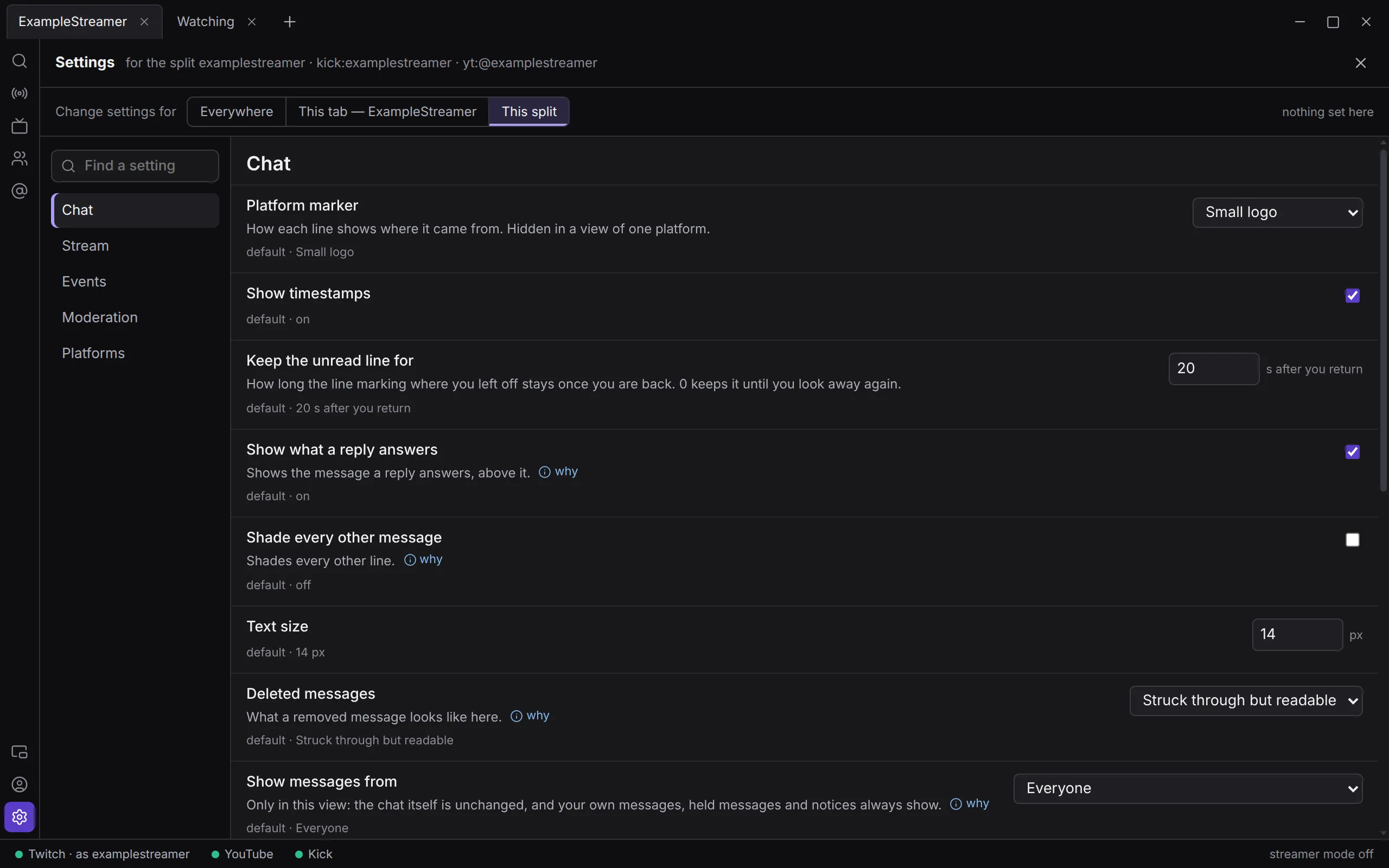
Opened for a tab or a split, the header says which one after Settings, for example for the split examplestreamer · kick:examplestreamer.
To close the panel, click its ✕ (Close settings), click Settings on the rail again, or press Esc.
Find a setting
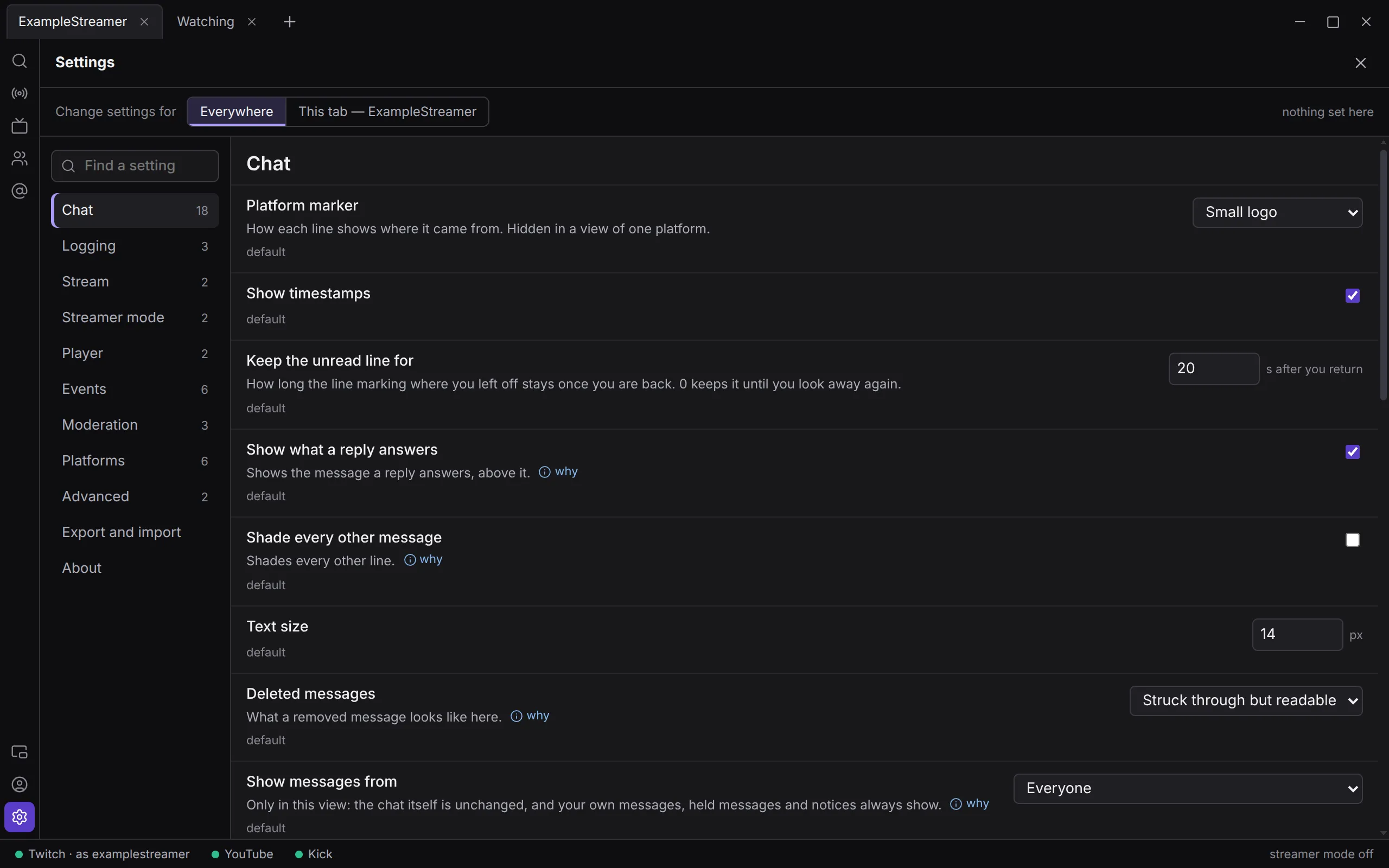
Section titled “Find a setting”The list on the left has the sections: Chat, Logging, Stream, Streamer mode, Player, Events, Moderation, Platforms and Advanced. Below them come Export and import and About. While Developer mode is on, Forgotten people appears between those two.
Click a section to show its settings. At Everywhere, each section shows how many settings it has on screen.
To search every section at once, type in Find a setting. It looks through each setting’s name, its description and the longer explanation behind why, and shows what it finds grouped by section. If nothing matches, the panel says Nothing matches “…”.
Under each setting’s name is one line saying what it does. Where there is more to know, why at the end of that line opens the reasoning; pointing at why shows it too.
Some settings only matter while another says so. Let go when the pointer rests for, for example, only matters while Pause while the pointer is over the chat is on. Such a setting is drawn indented under the one it depends on, and is hidden while it would do nothing.
When the panel is narrower than 640 pixels, the section list becomes a row across the top.
Everywhere, this tab, this split
Section titled “Everywhere, this tab, this split”A setting’s value can come from four places. The most specific one wins:
- This split: a value set for one split.
- This tab: a value set for one tab, used by every split in it.
- Everywhere: your value for the whole app.
- The default Konflux comes with.
So a split with its own Text size uses it. A split without one uses its tab’s; a tab without one uses yours for everywhere; and with none of those, the default applies.
Only some settings can differ per tab or split: 25 of the 48, marked “Everywhere, tab, split” in the reference below. The others, such as Keep a local message log or Moderation keys, have one value for the whole app.
The scope bar
Section titled “The scope bar”When Settings is opened with more than one level to choose from, a bar under the header reads Change settings for, followed by one button per level: Everywhere, This tab — <tab name> and This split. The highlighted button is where your changes go. At the right, the bar counts the values set at that level: nothing set here, or for example 3 set here.
| Opened from | Buttons | Starts at |
|---|---|---|
| The rail, with a tab open | Everywhere, This tab — … | Everywhere |
| The rail, with no tab open | No bar: everywhere only | Everywhere |
| A tab’s menu | Everywhere, This tab — … | The tab |
| A split’s header | Everywhere, This tab — …, This split | The split |
At This tab or This split, the panel lists only the settings that can differ there, and each section in the list shows how many are set at that level, such as 2 here. A note at the bottom of the page repeats how this works.
A tab’s or split’s values belong to it. Closing the tab or the split throws them away. They travel with your tabs in an export, under Tabs and splits.
Where a value comes from
Section titled “Where a value comes from”Under each setting, a small grey line says where its value comes from.
At Everywhere:
- default means you have not changed it.
- A setting you have changed is marked set here beside its name, with a coloured line down its left edge. Its grey line says what a reset would give back, such as the default is on, followed by the link use the default.
At This tab or This split:
- A value that is not set at this level says where it comes from and what it is, such as from everywhere · off, from this tab · on or default · 14 px.
- A value set at this level is marked set here. Its line says what the next level up has, such as everywhere says off, the tab says on or the default is on, followed by a link: use everywhere’s, use the tab’s or use the default.
If the view you opened Settings from has a value of its own that overrides the level you are changing, the line adds, in amber, for example · this split has its own: off. Your change will not show in that split until you remove its own value.
A split that has values of its own says overridden here in its header.
Resetting a value
Section titled “Resetting a value”Click the use … link under a setting. The value set at this level is removed, and the setting goes back to what the next level up says, which is not always the default. Pointing at the link says what it will do, starting Forget what is set here and use ….
Highlights and ignores holds a whole list of rules, so it asks first: Throw away the 3 rules set here? There is no undo. Click Throw away or Keep.
There is no button that resets every setting at once.
Changes that wait for a restart
Section titled “Changes that wait for a restart”The seven Logging settings are read when Konflux’s core starts. Their grey line says applies after a restart. After you change one, it says changed — applies after a restart, and a bar at the top of the panel says A change applies after a restart — only the core restarts, in about a second, and this window stays. Click Restart now to apply it. The window stays open and the chats reconnect.
When a value is refused
Section titled “When a value is refused”- A number outside its range goes back to the value it had, and the field says so, for example Between 11 and 20 — still 14. An emptied number field changes nothing and says the same.
- A text value Konflux cannot take is refused with the reason, followed by — still and the value it kept. Pogly overlay URL, for example, only takes a Pogly overlay URL, and Streamlink quality only takes a quality streamlink understands.
- A stored value that is no longer valid, for example after going back to an older version, is dropped when Konflux starts. The panel then says, at the top, how many were discarded and names them: 1 stored setting was discarded as no longer valid: and the setting.
Export and import
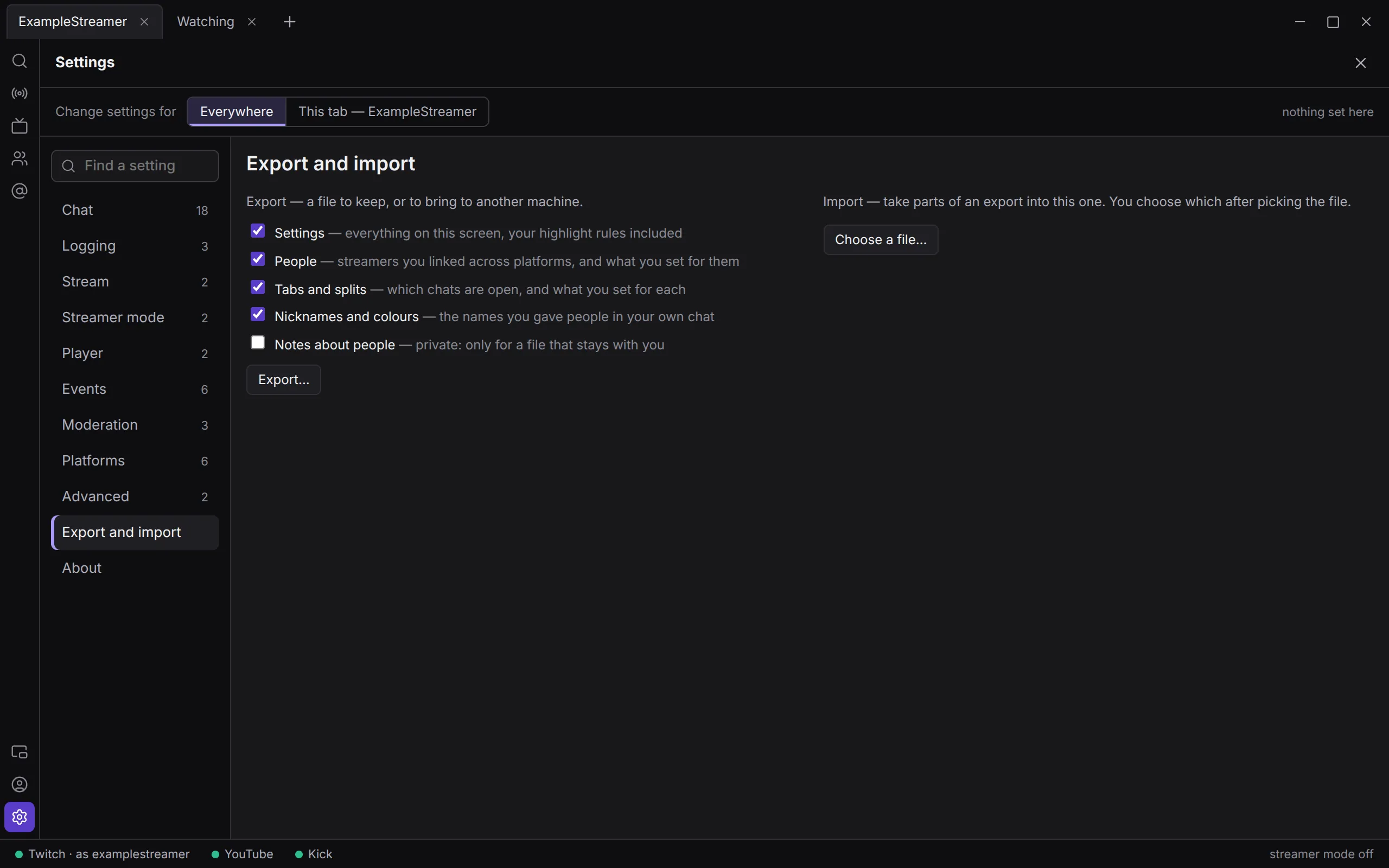
Section titled “Export and import”Export and import is in the section list at Everywhere. An export is one file holding the parts of your setup you choose. Your sign-ins are never part of it.
Export
Section titled “Export”-
Open Settings › Export and import.
-
Tick the parts to include. Everything except Notes about people is ticked to start with.
Part What it holds Settings Everything on this screen, your highlight rules included. People Streamers you linked across platforms, and what you set for them. Tabs and splits Which chats are open, and what you set for each. Nicknames and colours The names you gave people in your own chat. Notes about people Private: only for a file that stays with you. -
Click Export… and choose where to save. Konflux suggests
konflux-<date>.jsonin your Documents folder.
Konflux then says Saved to and the file, with how much of each part it holds. It refuses to save into its own folder, ~/.config/konflux.
Nicknames, colours and notes are kept in the chat log. With Keep a local message log off, they cannot be exported.
Import
Section titled “Import”-
Click Choose a file… and pick an export.
-
Konflux reads it without changing anything, and shows what it holds: From an export made <date> — choose what to take., then each part with how much of it there is.
-
Tick the parts to take. Each says what importing it does:
Part Importing it Settings Replace yours where the file has one. People Added to yours; anyone already here stays as they are. Tabs and splits Replace your tabs and their splits whole. Not ticked to start with. Nicknames and colours Added; a nickname you already gave someone is kept. Notes about people Added; a note you already wrote is kept. -
Click Import, or Cancel.
Before it changes anything, Konflux saves a copy of how things are now (A copy of everything as it is now is saved first.), in ~/.config/konflux/backups/. Afterwards it lists what it did with each part, and where that copy is. Importing the copy puts back your tabs and any setting the import changed. What the import added stays: people, nicknames, notes, and settings you had left at their default.
If an import cannot go ahead, nothing is changed, and the panel says Nothing was changed — followed by the reason: for example, a file that is not a Konflux export, or one made by a newer Konflux.
Which streamers are marked Same person as… is not carried over by an import.
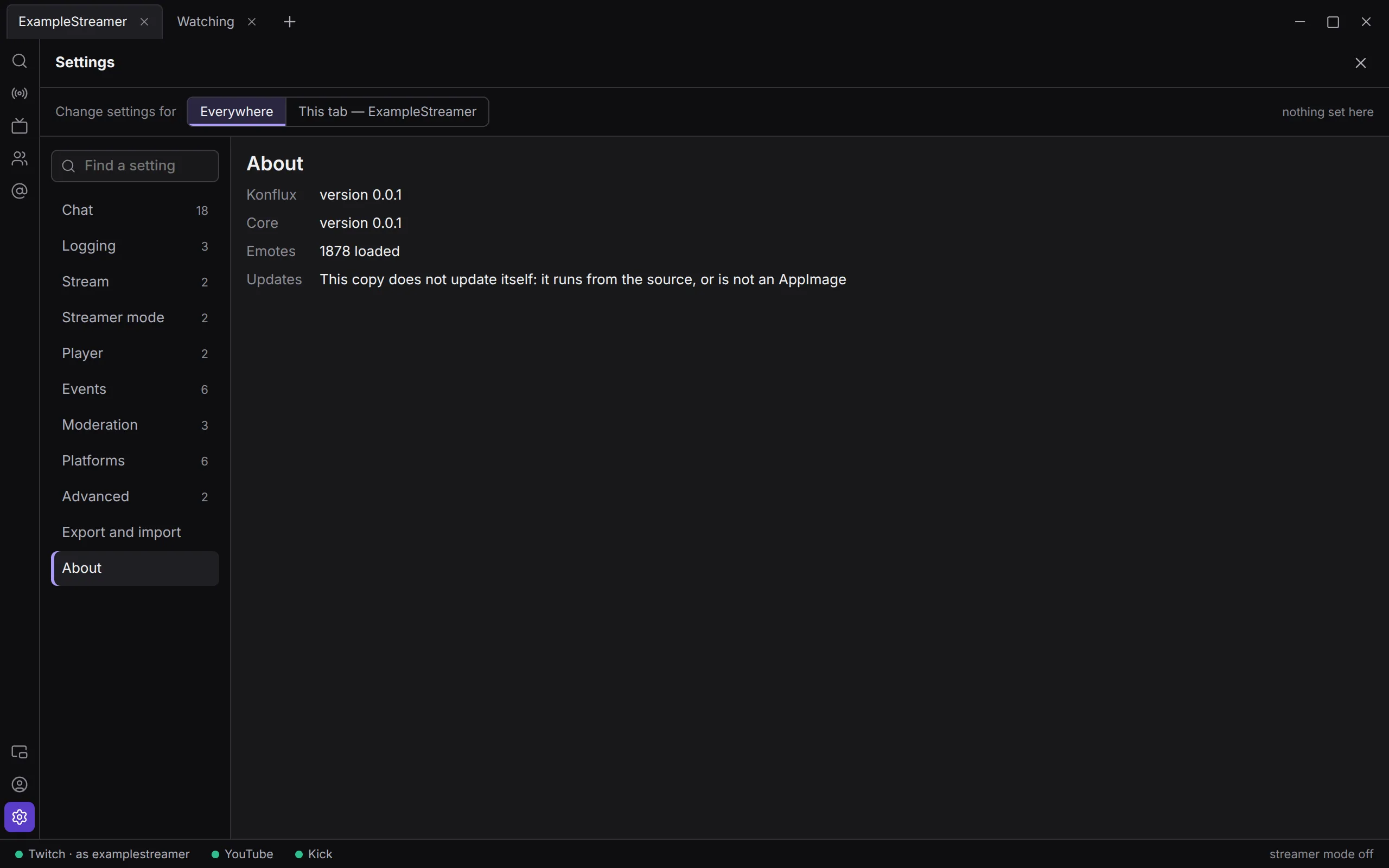
About is in the section list at Everywhere.
| Row | What it shows |
|---|---|
| Konflux | The version of Konflux you are running. |
| Core | The version of Konflux’s core, or not running. |
| Emotes | How many emotes are loaded, or none loaded yet. |
| Updates | Where updating stands, with Check now, or Restart now once an update is ready. Every message is explained in Install and update. |
| Report | Save a report…: a file for Kirehb when something goes wrong, shown in full before you save it. See Collect the details for Kirehb. |
Reference: every setting
Section titled “Reference: every setting”This lists all 48 settings Konflux has, by section, in the order the panel shows them. Some appear only while the setting they depend on makes them matter; the description says when.
In the Levels column, “Everywhere, tab, split” means the setting can also be set for one tab or one split. “Everywhere only” means it has one value for the whole app.
18 settings. Most of them are explained in more depth in Reading chat.
| Setting | What it does | Default | Levels |
|---|---|---|---|
| Platform marker | How each line shows where it came from: Coloured edge line, Small logo, Letter, Tinted timestamp or None. Hidden in a view of one platform. | Small logo | Everywhere, tab, split |
| Show timestamps | Shows the time at the start of each line. | On | Everywhere, tab, split |
| Keep the unread line for | How long the line marking where you left off stays once you are back, from 0 to 300 seconds. 0 keeps it until you look away again. | 20 s | Everywhere, tab, split |
| Show what a reply answers | Shows the message a reply answers, above it. Twitch and Kick send it with the reply; YouTube has no replies of its own. | On | Everywhere, tab, split |
| Shade every other message | Shades every other line: easier to tell lines apart at a glance, busier to read for long stretches. | Off | Everywhere, tab, split |
| Text size | The size of the chat’s text, from 11 to 20 pixels. | 14 px | Everywhere, tab, split |
| Deleted messages | What a removed message looks like here: Struck through but readable, Hidden or Replaced by a placeholder. While streamer mode is on, a placeholder is shown instead of the words. | Struck through but readable | Everywhere, tab, split |
| Show messages from | Everyone, Subscribers, members, VIPs and moderators, or Moderators and the broadcaster. Only in this view: the chat itself is unchanged, and your own messages, held messages and notices always show. /localsub, /localmod and /localsuboff do the same in one split. |
Everyone | Everywhere, tab, split |
| Fold repeated messages | Counts a quick repeat on its first line (×12) instead of drawing it again. Point at the count for who else said it; click it to show every copy. Your own messages, and lines a rule coloured, are never folded. | Off | Everywhere, tab, split |
| Hide messages with special characters | Hides messages with any character outside plain English letters, digits and punctuation, umlauts and emoji included. Meant for a wave of symbol spam; /localascii and /localasciioff do the same in one split. |
Off | Everywhere, tab, split |
| Messages kept in view | How many messages a view keeps, from 100 to 10,000. Older ones stay in the log and can be searched. Each line on screen takes about 33 KB of memory, so 2,000 is roughly 66 MB a view. | 2000 | Everywhere, tab, split |
| Animated emotes | Always, Only while the window is focused, Only on hover or Never. Animation is what costs processor time in a busy chat. Applies to a whole window. Only on hover is not built yet and works like Only while the window is focused. | Only while the window is focused | Everywhere only |
| Pause while the pointer is over the chat | Stops a new message moving the line you are aiming at. | On | Everywhere, tab, split |
| Let go when the pointer rests for | Shown while the setting above is on. After this long without the pointer moving, the chat stops holding and jumps to the newest message; moving the pointer holds it again. From 0 to 600 seconds; 0 holds for as long as the pointer is there. | 10 s | Everywhere, tab, split |
| Show timeouts and bans as they happen | Only where you moderate, Always or Never. Where you moderate you see them; viewers are spared them by default. | Only where you moderate | Everywhere, tab, split |
| Give every chatter a colour | Colours the names a platform gives no colour, such as YouTube’s. | On | Everywhere, tab, split |
| Open a person in their own window | Opens a user card in a window of its own rather than over the chat. | On | Everywhere only |
| Highlights and ignores | Your highlight and ignore rules, read top to bottom: the first rule with a colour colours the line, and any rule that hides it hides it. Notifications, sounds and Mentions fire only for messages arriving live, never for history, and never for your own. | One rule, Mentions of me, which colours messages that mention you and sends them to Mentions | Everywhere only |
Logging
Section titled “Logging”7 settings, all read when the core starts: a change applies after a restart.
| Setting | What it does | Default | Levels |
|---|---|---|---|
| Keep a local message log | Keeps a log of the chats you open, on this computer. User cards, notes, nicknames, search, evidence and older messages all run on it; turned off, they stop. | On | Everywhere only |
| Keep messages for | Shown while the log is on. How long this computer keeps messages, from 0 to 3,650 days; 0 keeps them forever. The log’s current size is shown under it. | 0 (forever) | Everywhere only |
| Server address | Your own log server, if you run one: where the log is sent, and where older messages come from. The key for it is kept in a separate file, never in settings, so an export cannot contain it. | Empty | Everywhere only |
| Send the log to it | Shown once there is a server address. Sends this computer’s log to your server. Off by default on purpose: it sends other people’s messages off this computer. | Off | Everywhere only |
| Send every | Shown while sending is on. How often a batch is sent, from 10 to 3,600 seconds. | 60 s | Everywhere only |
| Load older messages from it | Shown once there is a server address. Past what this computer recorded, older messages come from the server. It only reads. | On | Everywhere only |
| Keep fetched history for | Shown while the setting above is on. How long history from the server is kept here, from 0 to 365 days; 0 drops it when Konflux closes. What this computer recorded itself is never affected. | 7 days | Everywhere only |
Stream
Section titled “Stream”2 settings.
| Setting | What it does | Default | Levels |
|---|---|---|---|
| Stream strip | While something here is live or Never: the strip above a split’s chat with live time, title, category and viewers, asked once a minute while the tab is on screen. A platform Konflux could not ask (Twitch, until you sign in) is named when you point at the strip, never counted as zero. See Streamer tools. | While something here is live | Everywhere, tab, split |
| Pogly overlay URL | The overlay URL from Pogly’s editor, used by the Pogly panel. Only a Pogly overlay URL is accepted. The token that lets Konflux switch scenes is kept in the system keyring, never here. | Empty | Everywhere only |
Streamer mode
Section titled “Streamer mode”2 settings. See Streamer tools for what streamer mode does.
| Setting | What it does | Default | Levels |
|---|---|---|---|
| Streamer mode | Off, On or On while OBS is running. Keeps what is private off the screen while this window can show on stream: your notes, the nicknames and colours you gave people, what deleted and held messages said, suspicious-user flags, and desktop pop-ups and sounds. The status bar switches it on and off in one click. | Off | Everywhere only |
| Offer it when OBS starts | Shown while Streamer mode is Off. When OBS starts, offers to turn streamer mode on. | On | Everywhere only |
Player
Section titled “Player”2 settings, for a split’s play button.
| Setting | What it does | Default | Levels |
|---|---|---|---|
| Player | Which program plays a stream: streamlink if installed, otherwise mpv, streamlink, or mpv (plays through yt-dlp). | streamlink if installed, otherwise mpv | Everywhere only |
| Streamlink quality | Hidden while Player is mpv (plays through yt-dlp), which picks the best itself. What streamlink asks for: best, worst, 720p60, audio_only and so on. | best | Everywhere only |
Events
Section titled “Events”6 settings. Each kind of event means the same on all three platforms: gifted subscriptions, for example, include YouTube’s gifted memberships and Kick’s gift batches.
| Setting | What it does | Default | Levels |
|---|---|---|---|
| Show subscriptions | Shows subscriptions in the chat. | On | Everywhere, tab, split |
| Show gifted subscriptions | Shows gifted subscriptions in the chat. | On | Everywhere, tab, split |
| One line per gift bomb | Shown while gifted subscriptions are shown. One line for a gift bomb, with a running count, instead of one per gift; point at it for who received them. Twitch only: Kick already sends a batch as one event. | On | Everywhere, tab, split |
| Show raids | Shows raids in the chat. | On | Everywhere, tab, split |
| Show announcements | Shows announcements in the chat. | On | Everywhere, tab, split |
| Compact event lines | Events on the same line as what the person wrote, instead of a line of their own above it. | Off | Everywhere, tab, split |
Moderation
Section titled “Moderation”3 settings. See Moderating.
| Setting | What it does | Default | Levels |
|---|---|---|---|
| Mark likely spam | Tints what looks like spam and says why, only where you moderate. Nothing is hidden or moved. The signs: one person repeating themselves, a wall of capitals, disguised or stacked letters, character art, or a link in someone’s first message. | On | Everywhere, tab, split |
| Moderation keys | Point at a line and press a key. Edited as a list of keys and what each does. A key you leave out does nothing. Warn has no key unless you give it one, and always asks for a reason. | D delete, T time out, P purge, B ban, U unban, C open their card, R reply | Everywhere only |
| Preset reasons | Hold Shift with a timeout, purge or ban key to pick one, 1 to 9 by number. | Spam, Ban evasion, Harassment, Hate speech, Self-promotion, Off-topic | Everywhere only |
Platforms
Section titled “Platforms”6 settings.
| Setting | What it does | Default | Levels |
|---|---|---|---|
| Read Twitch chat as your own account | On, Konflux reads Twitch chat as you, and you appear in the channel’s chatter list. Off, it reads anonymously and nobody can tell it is there. Either way it never speaks unless you do. | On | Everywhere only |
| Show recent messages when opening a Twitch chat | Fills a Twitch chat with its recent messages when you open it. Twitch sends none itself; they come from recent-messages.robotty.de, a third-party service. | On | Everywhere only |
| YouTube chat view | Which of YouTube’s two chat views to read: Everything said or Top chat — YouTube’s selection. What is logged is unfiltered either way. | Everything said | Everywhere, tab, split |
| Mark what Top chat would hide | Hidden while YouTube chat view is Top chat — YouTube’s selection. Marks the messages YouTube’s Top chat leaves out. Costs a second connection to that chat while it is on. | Off | Everywhere, tab, split |
| Check YouTube chat at least every | How often YouTube chat is checked, from 1,000 to 30,000 milliseconds. Raise it on a computer watching many YouTube chats at once. | 2000 ms | Everywhere only |
| Warn when the YouTube daily budget runs low | Warns once a day when less than a tenth of YouTube’s daily budget is left. Each message you send costs 50 of the day’s 10,000 units, and so does each moderation action. | On | Everywhere only |
Advanced
Section titled “Advanced”2 settings.
| Setting | What it does | Default | Levels |
|---|---|---|---|
| Check for updates | Asks updates.konflux.app, a minute after Konflux starts and then once a day, whether there is a newer version, and downloads it. It is installed when you restart, never before. See Install and update. | On | Everywhere only |
| Developer mode | Shows tools that are not for everyday use: today, Forget this person… on a user card, and the Forgotten people section in Settings. | Off | Everywhere only |
Not yet
Section titled “Not yet”- Settings for one streamer, which would follow them into any tab they are in, and profiles, named sets of settings that switch on together. Today a setting can differ per tab and per split only.
- Only on hover for Animated emotes: the option is there, but it works like Only while the window is focused.