Pogly
Pogly is a collaborative stream overlay: you build it in Pogly’s editor and show it in OBS. Konflux opens that editor in a window of its own, and changes the overlay’s scenes from a panel beside your chat. Pogly calls scenes “layouts”; Konflux calls them scenes.
You connect once, in two steps: first your overlay’s URL, then an API token that lets Konflux change it.
Open the Pogly panel
Section titled “Open the Pogly panel”Click Pogly on the rail, near the bottom (its tooltip: Pogly — the overlay’s scenes, and its editor).
At the top of the panel, Open editor opens Pogly’s editor in a window of its own. Sign in to Pogly there as you would on Pogly’s website. The editor window keeps its sign-in between restarts, separately from everything else in Konflux.
Step 1: your overlay’s URL
Section titled “Step 1: your overlay’s URL”The first thing the panel asks for is Your overlay. Its directions read:
In the editor window: the link button at the top right, beside the bell, then the copy button next to the URL, with follow live layout chosen so a scene switched here shows in OBS — the same link as in OBS. Then take it from here, or paste it below.
- Click Open editor, or the words “editor window” in the directions.
- In the editor, click the link button at the top right, beside the bell.
- Choose follow live layout, then click the copy button next to the URL. Follow live layout is what lets a scene you switch in Konflux show in OBS.
- Back in Konflux, click Use what I copied. The panel says “Took the overlay URL you copied.”
Or paste the URL into the box under the button (it shows https://cloud.pogly.gg/overlay?module=… while empty) and click Save.
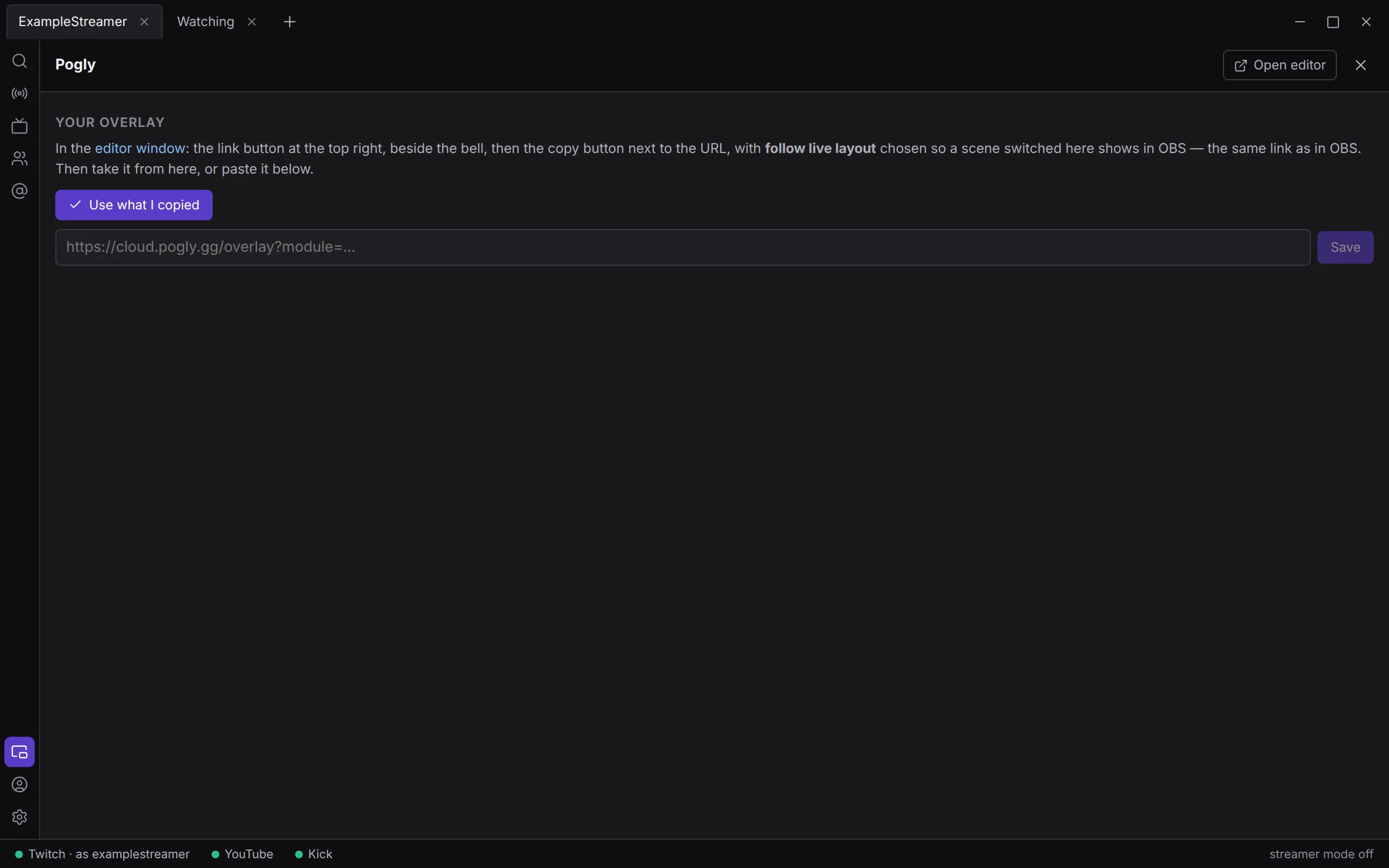
The URL is kept as a setting, Pogly overlay URL, in Settings › Stream. You can paste it there too. That setting’s help names a second way to copy it in Pogly’s editor: “The overlay URL from Pogly’s editor: Settings, Copy Overlay URL.”
What Konflux accepts
Section titled “What Konflux accepts”An overlay URL on pogly.gg that starts with https:// and has a module= part, the part that says which overlay it is. Konflux works only with overlays on Pogly’s cloud.
- Something that is not a Pogly overlay URL is refused: “That is not a Pogly overlay URL — the editor’s Copy Overlay URL gives one like https://cloud.pogly.gg/overlay?module=… — so it was not kept.”
- An API token pasted into the URL box is not kept: “That was an API token, not the overlay URL — it was not kept. Give the overlay URL first, then the token.”
- An overlay on your own server, whose URL has a
domain=part, cannot be used. The panel says: “That is a self-hosted Pogly overlay (its URL has domain=): Konflux talks only to Pogly’s cloud for now.”
Step 2: an API token
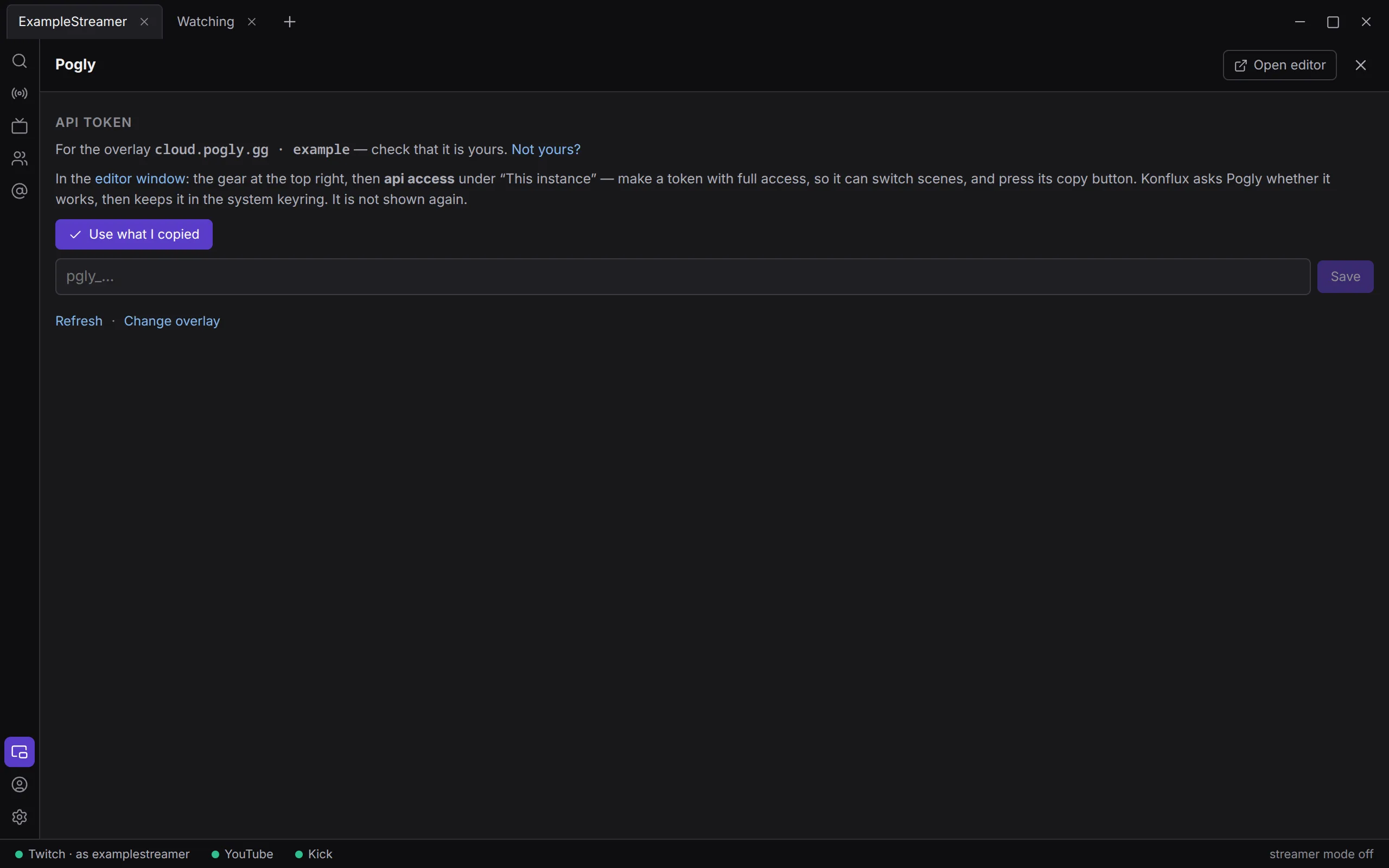
Section titled “Step 2: an API token”Once the overlay is set, the panel asks for an API token. It names the overlay the token will be for, for example “For the overlay cloud.pogly.gg · 3f9a1c2e…7b40 — check that it is yours.” If it is not yours, click Not yours? and give the right overlay URL.
The directions read:
In the editor window: the gear at the top right, then api access under “This instance” — make a token with full access, so it can switch scenes, and press its copy button. Konflux asks Pogly whether it works, then keeps it in the system keyring. It is not shown again.
- In the editor, click the gear at the top right, then api access under “This instance”.
- Make a token with full access, and click its copy button.
- Back in Konflux, click Use what I copied. The panel says: “Sent the token you copied to Pogly to check. Once it is kept, Konflux replaces it on the clipboard; a clipboard history, like KDE’s, keeps its own copy, which you can delete there.”
Or paste the token into the box under the button (it shows pgly_… while empty, and hides what you type) and click Save. The box empties at once.
What happens next:
- Konflux asks Pogly whether the token works for this overlay before keeping it. A token Pogly refuses is not kept, and the panel says why, for example “Not kept: Pogly did not accept the token”.
- A token Pogly accepts is kept in your system keyring, together with the overlay it was checked for. It is only ever sent to that overlay. It is never written to your settings, so an export cannot carry it.
- If it came from the clipboard, Konflux then replaces it there, and in the selection that a middle-click pastes, with “(Konflux took the Pogly token that was here)”. A token Pogly refused stays on the clipboard, because Pogly shows a token only once.
When “Use what I copied” does not work
Section titled “When “Use what I copied” does not work”| The panel says | What to do |
|---|---|
| “The clipboard holds no overlay URL or Pogly token. Copy one in the editor window first.” | Copy the URL or the token in the editor again, then click the button. |
| “Konflux cannot read the clipboard here: it needs wl-paste, from the wl-clipboard package. Paste it below instead.” | On Wayland, Konflux reads the clipboard with wl-paste. Install the wl-clipboard package, or paste into the box. |
| “Konflux cannot read the clipboard here: wl-paste could not reach the desktop’s clipboard. Paste it below instead.” | Paste into the box. |
| “The core could not be reached.” | The part of Konflux behind the window is not running, or is restarting. Wait until the status bar no longer mentions the core, then try again. |
Switch scenes
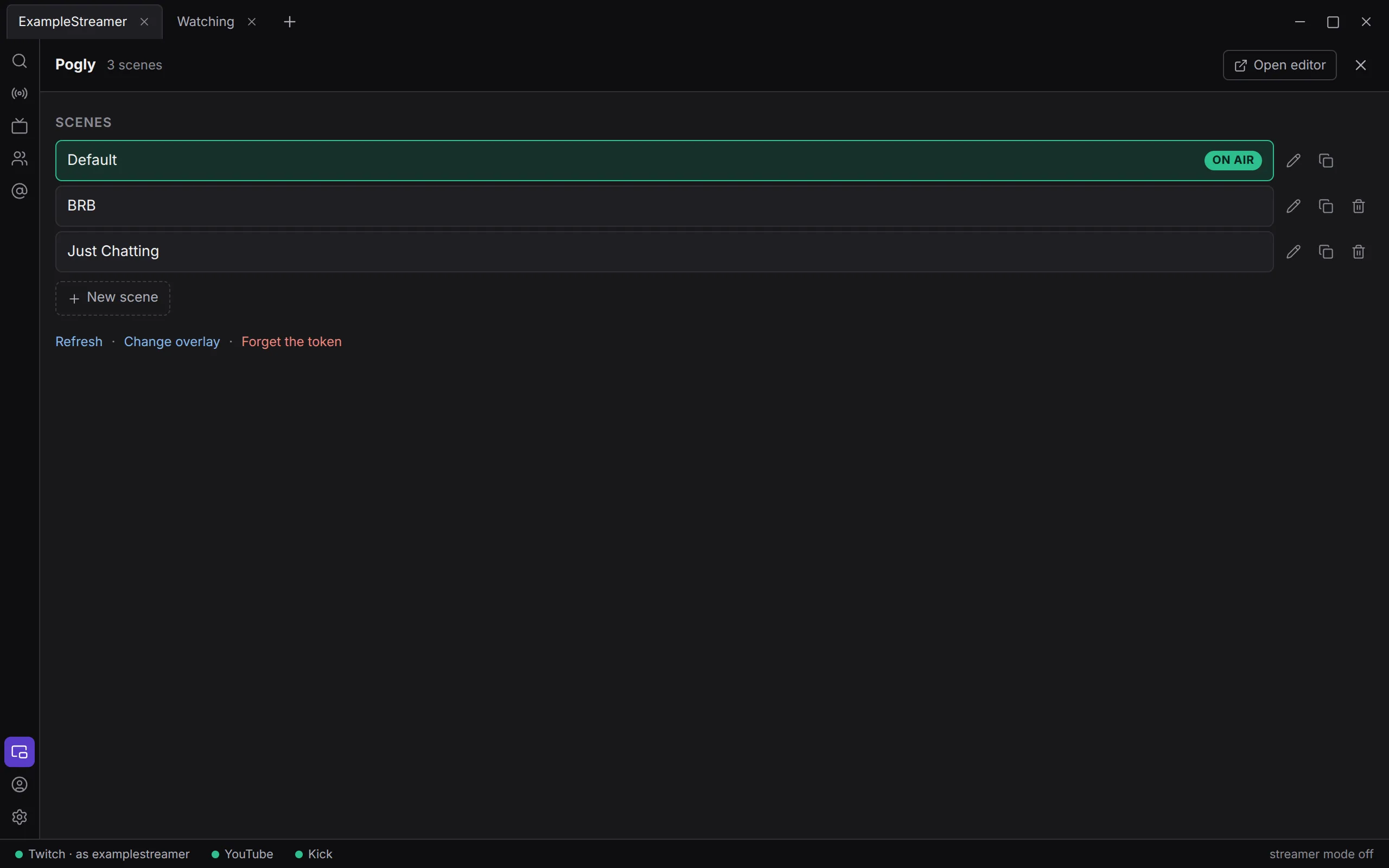
Section titled “Switch scenes”Once connected, the panel lists your Scenes, in the order they were made. The scene on the overlay now is marked on air. The panel’s header shows how many scenes there are, or asking Pogly… while Konflux waits for an answer.
- Click a scene to put it on the overlay. Its tooltip reads Switch the overlay to name.
- If the link in OBS was copied with follow live layout, OBS shows the new scene.
- Pogly will not switch to a scene that is not the overlay’s size, so a switch never resizes the source in OBS. The panel then shows Pogly’s answer, which starts “Pogly said no (409)”.
Konflux sends one change at a time. The panel waits for Pogly’s answer before it takes the next.
Create, rename, copy and delete scenes
Section titled “Create, rename, copy and delete scenes”The buttons beside each scene, and New scene under the list, appear only when your token allows them (see What your token allows).
- Create: click New scene, type a name where it says Name of the new scene, and click Create. Pogly makes it at the overlay’s size. It does not go on air.
- Rename: click the pencil (Rename name), type the new name, and click Rename. Cancel or Esc leaves the name as it was.
- Copy: click the copy button (Copy name, with everything on it). Pogly makes a copy of the scene and everything on it, with the same name.
- Delete: click the bin (Delete name). Konflux asks first: “Delete “name” and everything on it? There is no undo.” For the scene on air it adds “It is on air, so the overlay changes scene.” Click Delete, or Keep to leave it.
Pogly’s first scene cannot be deleted, so it has no delete button. The scene on air can be deleted only with a token that may also switch scenes.
What your token allows
Section titled “What your token allows”Konflux asks Pogly what the token may do, and offers only that. Pogly names each permission; this is what Konflux needs for each change:
| To … | Pogly’s permission |
|---|---|
| Switch scenes | SetLayoutActive |
| Create or copy a scene | AddLayout |
| Rename a scene | UpdateLayout |
| Delete a scene | DeleteLayout, and for the scene on air SetLayoutActive as well |
- The overlay’s owner may do everything, and sees every button.
- A read-only token may change nothing. The heading says — a read-only token: changing anything needs one with full access.
- A token that may not switch scenes shows the scenes without letting you click them, and the heading says — this token may not switch scenes.
- If Pogly lists no permissions for the token at all, Konflux offers everything, and Pogly refuses what the token may not do, in its own words, for example “Pogly said no (403): …”.
Messages from Pogly
Section titled “Messages from Pogly”Problems appear at the top of the panel.
| The panel says | What it means |
|---|---|
| “Pogly did not accept the token” | The token is wrong, or was deleted in Pogly. Make a new one and give it to Konflux. |
| “Pogly could not be reached: …” | No answer from Pogly: your connection, or no answer within 10 seconds. Click Refresh later. |
| “Pogly said no (…): …” | Pogly refused, in its own words, with the code it answered. |
| “Not kept: paste the overlay URL first, so Pogly can say whether the token is for it.” | A token arrived before an overlay was set. Do step 1 first. |
| “Not kept: the token is empty.” | Nothing was pasted. |
| “A scene needs a name.” | Type a name before creating or renaming. |
| “The token Konflux keeps is for the overlay …, and Settings now names …. It is not sent there. Check that … is your overlay before giving it a token.” | The overlay URL changed, for example after an import, and the kept token belongs to the old overlay. Konflux does not send it to the new one. If the new overlay is yours, give Konflux a token for it. |
| “That overlay URL names no Pogly overlay: it needs the ?module= part the editor’s Copy Overlay URL gives.” | The URL has no module= part. Copy it again from the editor. |
Refresh, change the overlay, forget the token
Section titled “Refresh, change the overlay, forget the token”At the foot of the panel:
- Refresh asks Pogly again for the scenes and what the token may do.
- Change overlay brings back the box for the overlay URL.
- Forget the token removes the token from the system keyring. The panel asks for a token again.
What Konflux keeps and sends
Section titled “What Konflux keeps and sends”- The overlay URL is kept in your settings file, as Pogly overlay URL. It is not a secret.
- The token is kept in your system keyring, with the overlay it belongs to, and sent only to that overlay.
- The editor window is Pogly’s own website. It keeps its own sign-in in Konflux’s browser storage. It can move only among Pogly’s pages and the sign-in pages Pogly uses; any other link opens in your web browser. It may copy to your clipboard, which Pogly’s copy buttons need, and go full screen, and nothing more: no camera, microphone, location or notifications.
- Connections: the panel talks to Pogly’s API at
maincloud.spacetimedb.com, sending your token and your overlay’s ID. The editor is atcloud.pogly.gg, or your overlay’s own pogly.gg address. More on Your data.
Not yet
Section titled “Not yet”- Overlays on your own server (a URL with
domain=): Konflux talks only to Pogly’s cloud. - Quick settings and widget control, such as changing a counter on the overlay, are ideas and not built.